- 1Formatting is the layout layer of an email, separate from what you say: line length, spacing, the format you compose in, and where the salutation, body, closing, and signature sit.
- 2Keep body lines to 50 to 75 characters and leave one blank line between paragraphs. Readers scan rather than read, and on an average page they have time for about 20% of the words (Nielsen Norman Group).
- 3Plain text is the safest default for one-to-one email because it renders the same in every client. Reach for HTML only when images or links have to do real work, and keep rich text light.
- 4Outlook and Gmail tuck the same settings in different menus, and both can quietly change your formatting when you switch devices or reply to a message composed in the other.
Every email does two jobs. It says something, and it looks a certain way on the screen. Most advice covers the first job. This guide covers the second.
Formatting is the layout layer, and it decides whether your message reads as calm and organized or as a wall the recipient has to climb. Get it right and the reader never notices. Get it wrong and they notice without being able to name what is off: cramped lines, no white space, a signature that swallows the message, a reply that lands in a font nobody chose.
This guide walks through how to format email from the blocks up. It then handles the situations people search for most, including formal notes, messages to a professor, and the Outlook and Gmail settings that trip everyone up.
The wording is a separate skill. Tone, length, and structure get a fuller treatment in writing a good email, while this article stays on the visual layer.
What Email Formatting Actually Means
Format is not tone, and it is not style in the fashion sense. It is the physical arrangement of the message: how wide the lines run, how much white space sits between paragraphs, whether you compose in plain text or HTML, and how the signature block is built.
That distinction matters because poor formatting makes good writing hard to read, and editing the words will not fix it. A clear request buried in a solid block of text still reads as effort. The same request with a tight line length and a blank line between ideas reads as considerate.
When people ask how to format email, they usually mean this layout layer rather than the wording. The mechanics of how to properly format an email come down to four things: line width, paragraph spacing, the format you compose in, and the six blocks themselves.
There is a technical half too. Your email client renders what you type, and different clients render it differently. A font you set in a desktop app may not survive the trip to a phone, and an HTML layout that looks polished in Gmail can fall apart in Outlook. Good formatting is partly a design choice and partly a hedge against that.
Once the layout is right, the open question is whether you have the correct address to send it to. We make Name2Email, a free Chrome extension that answers it inside Gmail: give it a person's name and their company domain, and the likely patterns show up before you send.
How to Format an Email: The Six Blocks on the Page
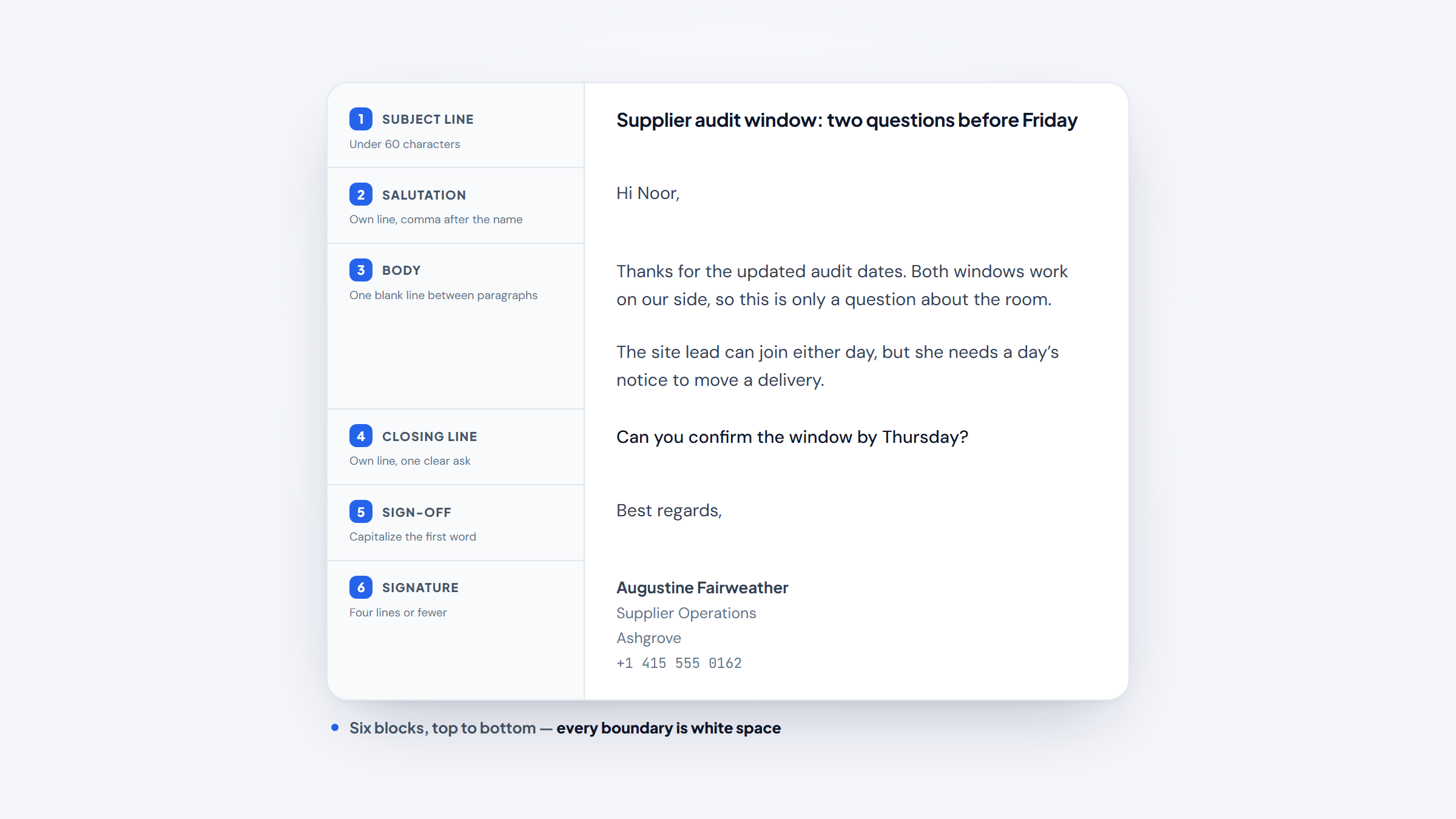
Every formatted email, from a two-line update to a formal letter, is built from the same six blocks. Learn the order once and you can format almost any message by filling them in. Whatever brings you here, the answer to how to format email is the same six blocks, and the same blocks cover how to format a business email, a formal note, or a quick update.
Block | What it does | Formatting rule |
|---|---|---|
Subject line | Names the topic | Under 60 characters, specific |
Salutation | Sets the relationship | Its own line, comma after the name |
Body | Carries the message | One blank line between paragraphs |
Closing line | States the next step | Its own line, one clear ask |
Sign-off | Ends politely | Own line, capitalize the first word |
Signature | Identifies you | Four lines or fewer |
Work top to bottom, and if it helps, leave the subject line until the end; by then you will know exactly what the message covers. The content inside each block is a separate craft, worked through in writing an email professionally.
The rule that holds across all six blocks is white space. Blank lines are not wasted space. They tell the reader where one thought ends and the next begins, and they cost nothing.
Line Length and Spacing: The Part Readers Feel but Never Notice
Two numbers do most of the work in a well-formatted email, and most people never think about either one. The first is line length. The second is the gap between paragraphs.
The Baymard Institute, which studies readability through large-scale usability testing, puts the optimal line length for body text at 50 to 75 characters, including spaces. Shorter lines force the eye to jump too often, and longer lines make it hard to track back to the start of the next line. The Web Content Accessibility Guidelines draw the accessible outer limit at 80 characters.
In practice, a plain-text email in a normal compose window is already close to that range on a desktop. Where it goes wrong is in HTML email, where a full-width template can run a line to 120 characters or more on a wide monitor. If you build or send HTML email, cap the body width so lines stay inside the readable band.
The second number is the space between paragraphs. Use one blank line, not two, and do not indent the first line. Email is read in a scrolling window, not on a page, so the block layout that looks tidy in a letter reads as cramped on a phone. An empty line is the only paragraph break a reader reliably sees.
How much of that layout actually gets read is worth knowing. The Nielsen Norman Group found that on an average page, users have time to read at most 28% of the words, and 20% is the realistic figure. Your formatting is what they scan, so it has to carry the shape of the message on its own.
Plain Text or HTML? Pick the Format Before You Type
Before you type a word, you are composing in one of three formats, whether you chose it or not. Plain text carries no styling at all. Rich text adds bold, italics, and lists but no layout. HTML adds images, columns, and buttons. Each one behaves differently once it leaves your outbox.
Format | What it renders | Best for | Watch out for |
|---|---|---|---|
Plain text | Nothing but characters | One-to-one email, replies, cold outreach | No images or links, no emphasis |
Rich text | Bold, italics, lists | Everyday business email | Alignment drift between clients |
HTML | Images, columns, buttons | Newsletters, marketing | Breaks in Outlook and dark mode |
For one-to-one email, plain text is the safest default because it looks identical in every client, on every device, forever. That consistency is the whole point. The format decision comes before the writing itself, because plain text removes the styling options that cause trouble later.
In a Reddit thread on email formatting practice, the most upvoted reply made the case that plain text is fast, consistent, and easy to maintain, and that most people only read the subject line anyway. The thread is anecdotal, but it matches what the readability research says about scanning.
Rich text is a reasonable middle ground for ordinary business email, since a bolded date or a short list can help. Keep it light. An email with every other phrase in bold emphasizes nothing, and the styling is exactly what breaks when the recipient's client renders it differently.
HTML earns its place when the email has to sell: a newsletter, a designed announcement, a template with a button. Litmus, which tracks email rendering across clients, reports that Apple Mail and Gmail together account for nearly 90% of opens, with Outlook on desktop around 5.83% in its July 2026 report. That spread is why HTML email gets tested before it ships, not after.
How to Format a Professional Email, Step by Step
Formatting a professional email is easier once you treat it as a build, not a blank page. The six blocks give you the order, and the steps below show how to lay them out without guessing at spacing. They also cover a business email, because the layout does not change when the recipient sits outside your company.
- Set the compose format before you type, so you are not restyling after the fact.
- Write a subject line under 60 characters that names the specific topic.
- Put the salutation on its own line, and use a comma after the name.
- Open the body with your reason for writing, in the first sentence or two.
- Break the body into one-idea paragraphs with a single blank line between them.
- Put the next step on its own line, so the ask does not hide in a paragraph.
- Add the sign-off on its own line, then the signature block underneath it.
That order keeps the layout honest, because each element gets its own line rather than bleeding into the next. The formatting complements the writing instead of fighting it. The closing and sign-off are a writing decision rather than a formatting one, and the registers to choose between are covered in how to end an email.
The order above is also a repeatable answer to how to format a proper email, since it puts each block on its own line. The last formatting decision is the recipient field, and it is the one people rush. If you cannot find the person's address, that is where a finder earns its place, and confirming it by hovering beats guessing.
How to Format an Email Signature
The signature is the most over-built block in email, and the easiest to fix. It has one job: tell the reader who you are and how to reach you. Everything past that is decoration, and decoration is what breaks.
A clean signature runs four lines or fewer: your name, your title, your company, and one contact method. Include a phone number only when you actually want people calling it. Skip the quote, the full mailing address, and the wall of social icons unless your role genuinely needs them, because each extra line pushes the actual message further up the screen.
Images are the part that causes trouble. A logo embedded in a signature often arrives as an attachment when the recipient has images turned off, which is a common default in business clients.
In a large r/sysadmin discussion on signature best practices, the top-voted advice was that signature standards should be set centrally rather than per person, and several commenters recommended hosting any logo on a web server rather than attaching it. The thread is anecdotal, but the failure mode it describes is real.
Formatting the signature block itself is simple: name on the first line, each detail on its own line, and no more than one blank line between the sign-off and the block. The sign-off carries as much signal as the greeting, and email closing salutations sorts the options by register for you.
How to Format a Formal Email
A formal email uses the same six blocks as any other, but the blocks widen. The steps for how to format a formal email are mostly about register. You give the salutation a full line with a title, you keep the body in complete sentences, and you close with a formal sign-off that matches the greeting.
The choices themselves are small. "Dear Dr. Patel," takes a comma and a title, and it pairs with "Sincerely," not "Thanks." A formal email also resists the shortcuts that make everyday email readable, so bullet lists are rare and contractions are fewer. The layout stays disciplined even when the tone tightens.
Recipient | Salutation style | Sign-off | Body formatting |
|---|---|---|---|
Senior leader or stranger | Dear Dr. Patel, | Sincerely, | Full paragraphs |
Client you have met | Hello, Sam, | Best regards, | Short paragraphs |
Peer or teammate | Hi, Dana, | Thanks, | Paragraphs or a short list |
Unknown name | Dear Hiring Manager, | Best regards, | Full paragraphs |
When the relationship is unclear, copy the layout of the message you are answering. A reply that opens the way theirs did reads as attentive rather than lazy, and it removes the guesswork about how formal to be.
How to Format an Email to a Professor
An email to a professor is a formal email with one extra constraint: the recipient reads a lot of student email and sorts it fast. If you are wondering how to format an email to a professor, start from the formal layout and then add the identifiers that let them place you.
Use your school address, not a personal one. Put the course name and number in the subject line so the message files itself. Open with "Dear Professor [Last name]," and use their title as they use it. Put your question on its own line with a blank line around it, rather than folding it into a paragraph where it can be missed.
Keep the body to a few short paragraphs and give the professor the context they need in the first line: who you are, which class, and what you need. If there is a deadline, state it plainly. Sign with your full name and student ID if your school asks for it, since a professor matching you to a roster needs the identifier more than they need a title.
When you ask for a letter of recommendation or an extension, the same formatting applies. The structure is what signals that you have thought about their time, which is the impression you are trying to leave.
How to Format Email in Outlook
Outlook is where formatting goes wrong most often, because it has multiple places to set the same thing and they do not always agree. The steps below cover the settings that actually control what the recipient sees.
Change the Default Compose Format in Outlook
The format you compose in is set per message and can be set as a default.
- Open a new message and go to the Format Text tab.
- Choose HTML, Plain Text, or Rich Text for this message.
- To change it for new messages, go to File, then Options, then Mail.
- In the Compose messages in this format box, pick HTML, Rich Text, or Plain Text.
If you need to know how to change email format in Outlook, the Format Text tab controls the open message. Switching a message to plain text strips everything but the characters, so a signature that relied on a logo or an image will lose it. That is expected, and it is why plain text and a designed signature do not mix.
Set Font and Spacing Defaults in Outlook
Outlook keeps its default font in the same Options menu, under Stationery and Fonts. This is where you set the font, size, and color for new messages, replies, and forwarded mail separately.
The spacing that looks unpredictable is usually a styles problem rather than a font one. Outlook ships Style Sets, groups of formatting options for headings, body text, and quotes. If a message keeps changing spacing on its own, the likely cause is manually formatted text fighting a style, which the built-in Style Inspector is designed to expose.
One practical note: a lot of "Outlook broke my formatting" reports come down to composing in one client and reading in another. A message typed on a phone and edited on a desktop can carry two fonts, which is why the same sentence appears in two sizes.
How to Format Email in Gmail
Gmail hides the same controls in Settings rather than in a ribbon. Once you know where they are, formatting in Gmail is faster to set up than Outlook because there are fewer places for the settings to disagree.
Set the Default Text Style in Gmail
Gmail applies a default font and size to new messages, and you can change it without touching each email. Open Gmail, click the gear icon, then See all settings. On the General tab, find Default text style, set the font and size, then scroll to the bottom and click Save Changes.
From then on, new messages start in that style. Pasted text can still drag its own formatting in, so use Remove formatting (the underlined T in the toolbar) when a copied block arrives in the wrong font.
Add and Format a Signature in Gmail
Gmail signatures live under Settings, not in the compose window, and they are configured per sending address. In Settings, scroll to the Signature section, create a signature, name it, and type the four lines you need. Assign it to the correct sending address, choose whether it appears on new messages and replies, then save changes at the bottom of the page.
Gmail's signature editor supports basic formatting but not embedded images in the same way a signature tool does, which keeps most Gmail signatures clean by default. If you need a logo, host it rather than pasting it in.
How to Send an Email in PDF Format
People search for how to send email in pdf format for two different reasons. One is attaching a document, such as a contract or an invoice, so the recipient can save or print it as it was made. The other is wanting the email itself to arrive as a fixed document that looks the same everywhere. The first is straightforward: export the document to PDF and attach it. The second is better solved with a shared link than an attachment, because a link stays current and does not fill an inbox.
For the first case, attach the file rather than pasting its contents. Name it clearly, mention it in the body so the reader knows to look, and attach it before you write the message so you do not send a follow-up that says "here is the document I meant to attach." If the file is large, a link to a shared drive beats a heavy attachment that a corporate mail server will block.
For the second case, the cleanest route is to write the message in a document, export it to PDF, and send that as the attachment, with a short summary in the email body. That gives you a fixed layout the recipient can open on any device, which is exactly what PDF is for.
Worth knowing: the sender's own client may render a PDF attachment at a different size than the recipient's. A resume or a contract formatted to a printed page will scroll awkwardly on a phone, so keep the email body self-contained and let the attachment be the record. When the same document goes to a group, send it individually so no address is exposed; sending to multiple recipients covers the setup.
Fixing the Formatting Problems Everyone Hits
Most formatting complaints share a small set of causes, and each has a fix. If your email keeps arriving in the wrong font, or the spacing shifts between the desktop app and the phone, work through the checks below.
- Confirm the compose format before you spend time styling, since plain text ignores styling by design.
- Strip formatting from pasted text with the remove-formatting control instead of restyling it by hand.
- Set one paragraph spacing value and stick to it, rather than adjusting line by line.
- Move a signature's logo to a host instead of embedding it, so it stops arriving as an attachment.
- Test an HTML email in more than one client before sending it to a list.
The pattern behind all of these is the same: formatting that lives in one client does not travel, and formatting that is set as a default does. Build the layout in the settings rather than in the message, and it survives the trip. When a thread has gone bad, the fix is often to start a fresh message in plain text rather than repair the old one.
If the problem is a reply that arrives with odd spacing, suspect the original message rather than your own client. Replying to HTML email in a plain-text client, then switching back, is a reliable way to produce two fonts in one thread. If the address is the problem rather than the layout, looking up an email address is the reverse check: start from an address you already have and confirm who owns it.
Send the Next One Formatted Right
Formatting is the part of email you set once and forget, which is exactly why it is worth getting right. Keep body lines in the 50 to 75 character band, use one blank line between paragraphs, default to plain text for one-to-one mail, and build the signature in your settings rather than in the message. Those four habits cover most of what readers notice.
If you want to know how to format a proper email, start with the six blocks and let the white space do the rest.
The last piece is the address. We built Name2Email to surface work emails inside Gmail while you compose, so a person's likely pattern appears in the To field before you hit send. There is no account to create and no fee to pay. It is strongest on corporate domains, and we say plainly that a pattern-based finder cannot get every address right. The how it works walkthrough shows the flow if you would rather see it first.
Add to Chrome and format your next email for the right person.
Frequently asked questions
Use the six blocks in order: subject line, salutation, body, closing line, sign-off, and signature. Keep the subject under 60 characters, put the salutation and sign-off on their own lines, and leave one blank line between paragraphs. That order is how to properly format an email for any recipient, and the layout is what makes the message easy to scan.
Keep it to four lines or fewer: your name, your title, your company, and one contact method. Use the same font size as the body, put each element on its own line, and host any logo on a web server rather than embedding it, so it does not arrive as an attachment.
Open a new message and use the Format Text tab to switch between HTML, Plain Text, and Rich Text. For step-by-step help on how to change email format in Outlook as a default, go to File, Options, Mail, and set the Compose messages in this format box.
Use your school address, put the course name and number in the subject line, and open with "Dear Professor [Last name]." Put your question on its own line with a blank line around it, keep the body to a few short paragraphs, and sign with your full name and student ID if your school uses one.
Write the content in a document, export it to PDF, and attach it to a short email that summarizes what is inside. Name the file clearly, mention the attachment in the body, and attach it before you write the message so you do not have to send it twice.

We build Name2Email, the free Chrome extension that finds work emails inside Gmail. We write about outreach, prospecting, and getting more replies.
Connect →