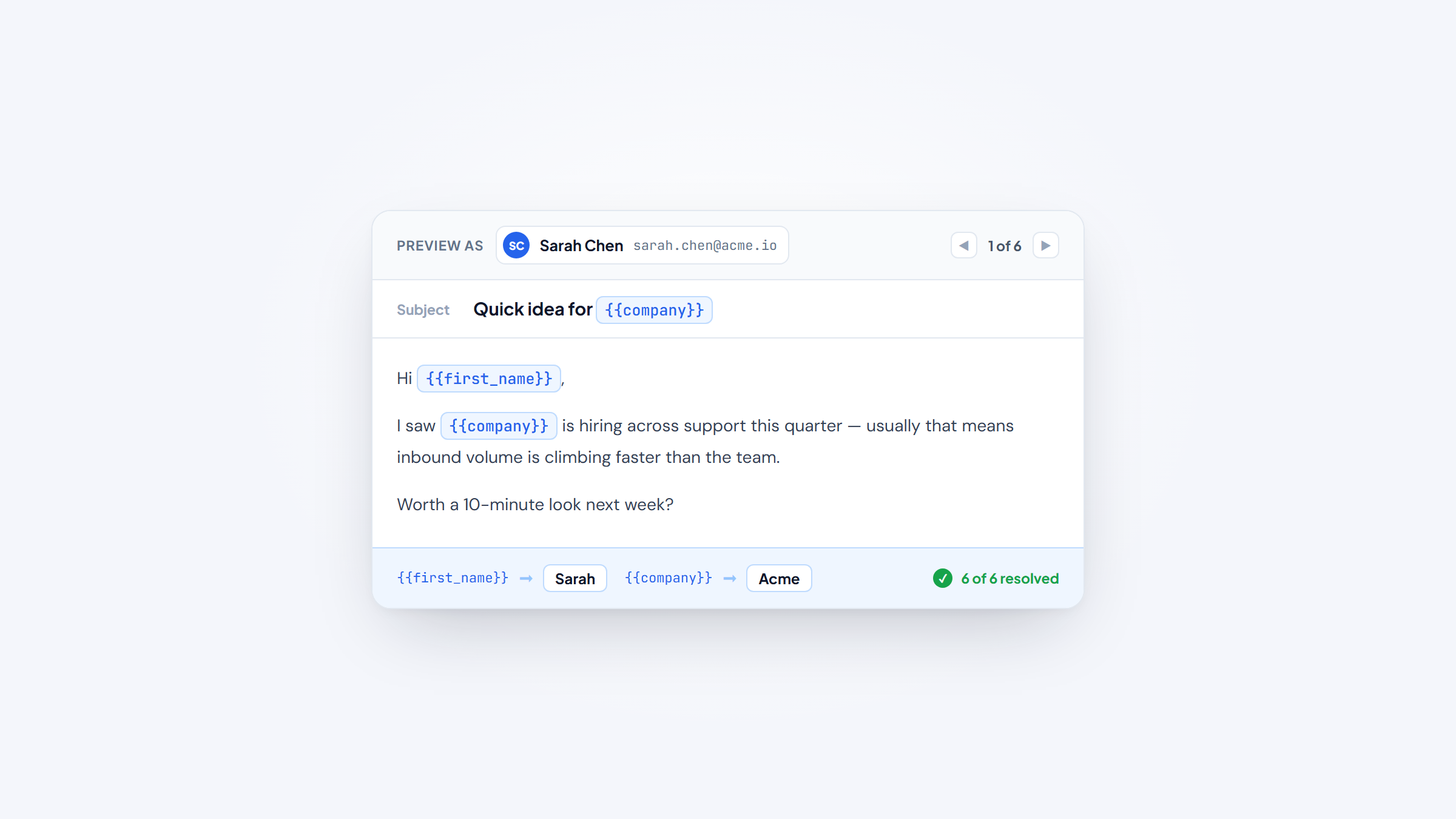
- 1Sending individually means each person gets their own private copy, no shared thread, no visible list of other recipients, and ideally their own name in the greeting.
- 2BCC hides addresses but sends one identical message to everyone, so it protects privacy without giving you real personalization. Mail merge sends a separate, personalized copy per person.
- 3Gmail and Outlook both do this natively: Gmail's mail merge (Workspace) and Outlook's Word mail merge each generate one email per recipient, within daily sending limits.
- 4Before any of this works, you need the right addresses. Our free Name2Email extension finds work emails inside Gmail, so your list is clean before you load it into a merge.
Learning how to send an email to multiple recipients individually looks simple, and it usually isn't. BCC everyone and you've hidden the addresses but sent one impersonal blast; put everyone in the "To" field and you've exposed the whole list to each other.
This guide covers the methods that actually send a separate, personal email to each recipient, in both Gmail and Outlook, plus the sending limits and the moment it's worth reaching for a dedicated tool.
We built Name2Email to find work emails inside Gmail, so we sit at the start of this workflow: you find the addresses, then you send. If you still need to gather them, our guide on how to find an email address covers the free ways; this one is about sending to the list once you have it.
BCC vs Individual Sends: The Key Difference
Most of the confusion here comes from treating BCC and individual sending as the same thing. They solve different problems, and mixing them up is why so many "individual" emails still read as mass mail.
BCC (blind carbon copy) hides every recipient from the others, which is a privacy tool. But it sends one identical message fanned out to the whole list: no first name, no per-person content, and one shared send that spam filters recognize as bulk. A true individual send generates a separate message per recipient, each addressed and personalized to that one person, arriving as its own thread.
The gap between what people expect and what a blast delivers is the whole reason to bother.
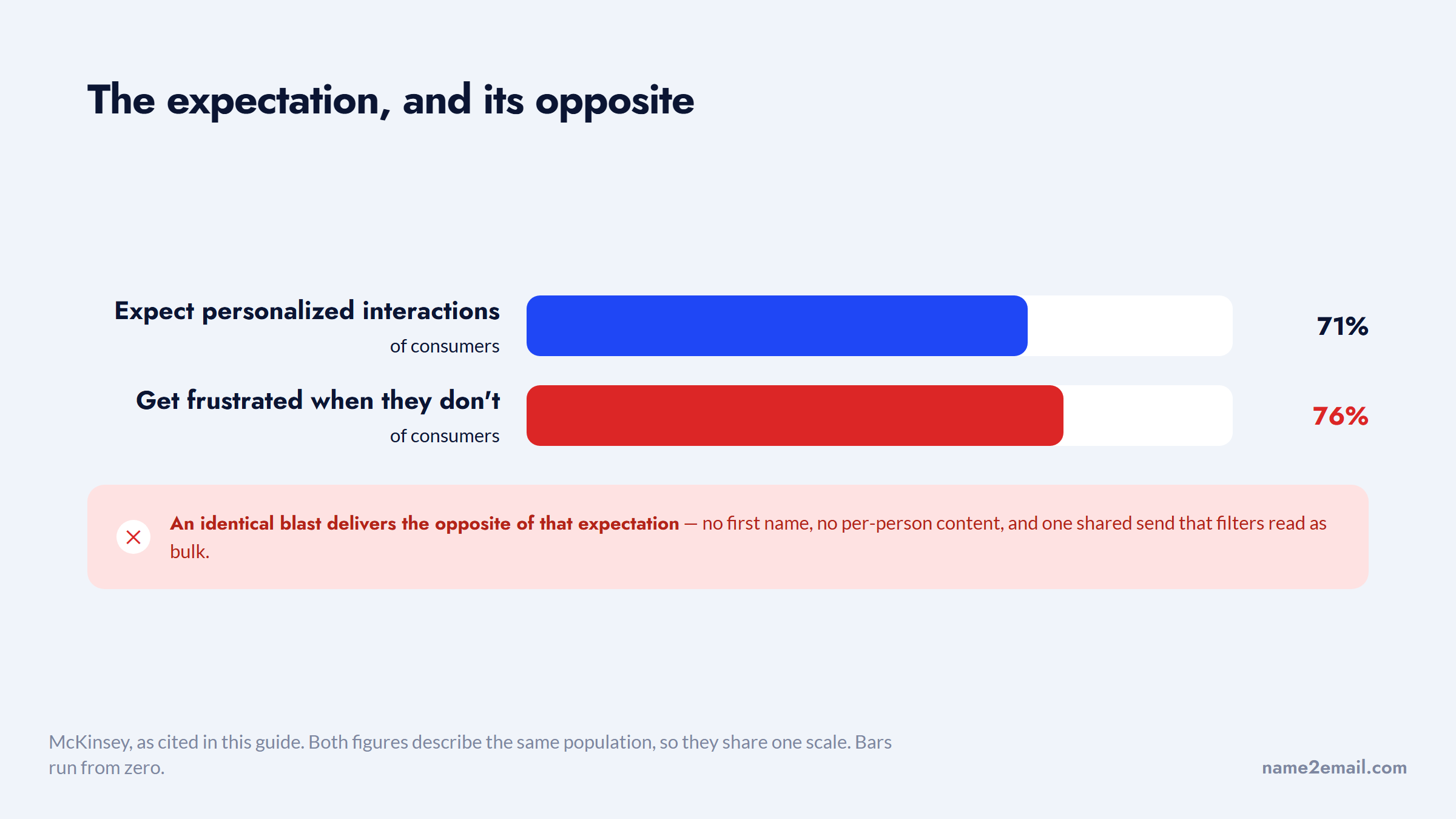
That difference matters more than it sounds, because personalization drives response. McKinsey found 71% of consumers expect personalized interactions and 76% get frustrated when they don't get them. An identical BCC blast delivers the opposite of that expectation, which is why the methods below that merge in each person's name and details outperform a hidden-recipient blast every time.
Which Method Sends Truly Individual Emails?
Before the step-by-steps, here's how the methods compare, so you can jump to the right one for your situation.
Method | Personalized? | Hides recipients? | Tracking? | Best for |
|---|---|---|---|---|
BCC | No | Yes | No | Identical message, privacy |
Gmail mail merge | Yes | Yes | Basic | Personalized, Workspace users |
Word + Outlook merge | Yes | Yes | No | Personalized, Outlook users |
Mail-merge add-on | Yes | Yes | Yes | Personal Gmail, small lists |
Cold email software | Yes | Yes | Yes | Scale, sequences, tracking |
The split is simple: BCC is privacy only, and everything below it personalizes. If you want each email to feel written for one person, you need a merge or a tool, not BCC. Use this table to pick a method, then follow its steps below.
How to Send to Multiple Recipients Individually in Gmail
Gmail gives you three routes, and they trade off convenience against real personalization. Pick based on whether you just need privacy or you need each email to feel written for one person.
The BCC Method (Privacy, Not Personalization)
BCC is the quickest option when the message is genuinely identical and you only need to hide addresses.
- Open Gmail and click Compose.
- Put your own address in the "To" field.
- Click "Bcc" and paste all recipient addresses there.
- Write the message and send. Each person receives it, and nobody sees the others.
The limits are real: there's no personalization at all, a large BCC blast reads as bulk and can hurt deliverability, and free Gmail caps you at 500 recipients per day. It's a privacy tool, not a personalization tool, so use it only when an identical message is genuinely fine.
Gmail Mail Merge (Personalized, Workspace Only)
Gmail's built-in mail merge (formerly "multi-send") sends a unique, personalized copy to each recipient. It's available on paid Google Workspace plans, not free @gmail.com accounts.
- Click Compose.
- Next to the "To" line, toggle Mail Merge on.
- Add recipients directly, or link a Google Sheet with columns like first name and email.
- In the body, type `@` and pick a merge tag such as `@firstname` or `@lastname`.
- Send. Each recipient gets their own copy with the tags filled in, can't see who else got it, and replies come back as separate threads.
Gmail allows up to 1,500 mail-merge recipients per message and per day, sharing your account's daily quota. This is the native way to send the same email to multiple recipients separately with real personalization, no add-on required, as long as you're on Workspace.
Contact Labels for Repeat Sends
If you email the same small group often, Google Contacts labels save time.
- Go to Google Contacts and select the people.
- Click "Manage labels" and create a label, like "Q3 prospects."
- In Gmail, type the label name into the Bcc field, and it expands to everyone in it.
This is a convenience layer over BCC, so all the BCC caveats still apply: no personalization and the same daily caps. It's handy for a recurring identical update, not for personalized outreach.
How to Send to Multiple Recipients Individually in Outlook
Outlook covers the same two jobs, privacy and personalization, with BCC and a Word-powered mail merge. The mail merge is the one that sends genuinely individual emails.
Outlook BCC
Outlook's BCC works just like Gmail's, hiding recipients from each other while sending one shared message.
- Start a New Email; if Bcc isn't visible, go to Options and enable Bcc.
- Put your address in "To" and all recipients (or a contact group) in "Bcc."
- Send. Same limitation as Gmail BCC: identical message, no personalization.
Microsoft 365 enforces a recipient-rate limit of 10,000 per day and a maximum of 500 recipients per message on Exchange Online, so BCC is capped there too.
Outlook and Word Mail Merge (True Individual Sends)
For a personalized email per person, use Word's mail merge with classic desktop Outlook set as your default mail app. It doesn't work in the new Outlook or Outlook on the web.
- Build an Excel sheet with columns (First Name, Email, Company), one recipient per row, and save it.
- In Word, open the Mailings tab and choose Start Mail Merge, then E-mail Messages.
- Select Recipients, Use an Existing List, and pick your Excel file.
- Write the email and use Insert Merge Field to drop in «First_Name» and other fields.
- Preview Results to spot-check, then Finish & Merge, Send E-mail Messages.
- Set "To" to the email column, add a subject, choose HTML format, and click OK.
Word hands each message to Outlook and sends one individual email per row, each personalized, and recipients see only themselves. The honest limits: no CC/BCC on a merge, no attachments (links only), and no open, click, or reply tracking. It's genuine personalization, but manual and untracked.
One clarification, since people ask: Outlook rules automate handling of incoming mail (forwarding, sorting, auto-replies), they don't send a personalized blast to a list. If you want that, it's mail merge or a dedicated tool, not rules.
Make Each Email Actually Feel Personal
Merging a first name is the bare minimum. A merge that only swaps a name into a generic template still reads like a template, so a few habits make each email feel genuinely one-to-one.
Start by merging more than the name. Reference the person's company, role, or a specific detail with extra columns in your sheet, so the body changes per recipient, not just the greeting. Write like one person to one person, keeping the subject and opening conversational; "Quick question about your team" beats "Newsletter #47." Send from a real address rather than a no-reply, so replies land in a human inbox where you can answer them.
The difference shows up in the spreadsheet before it shows up in the message.
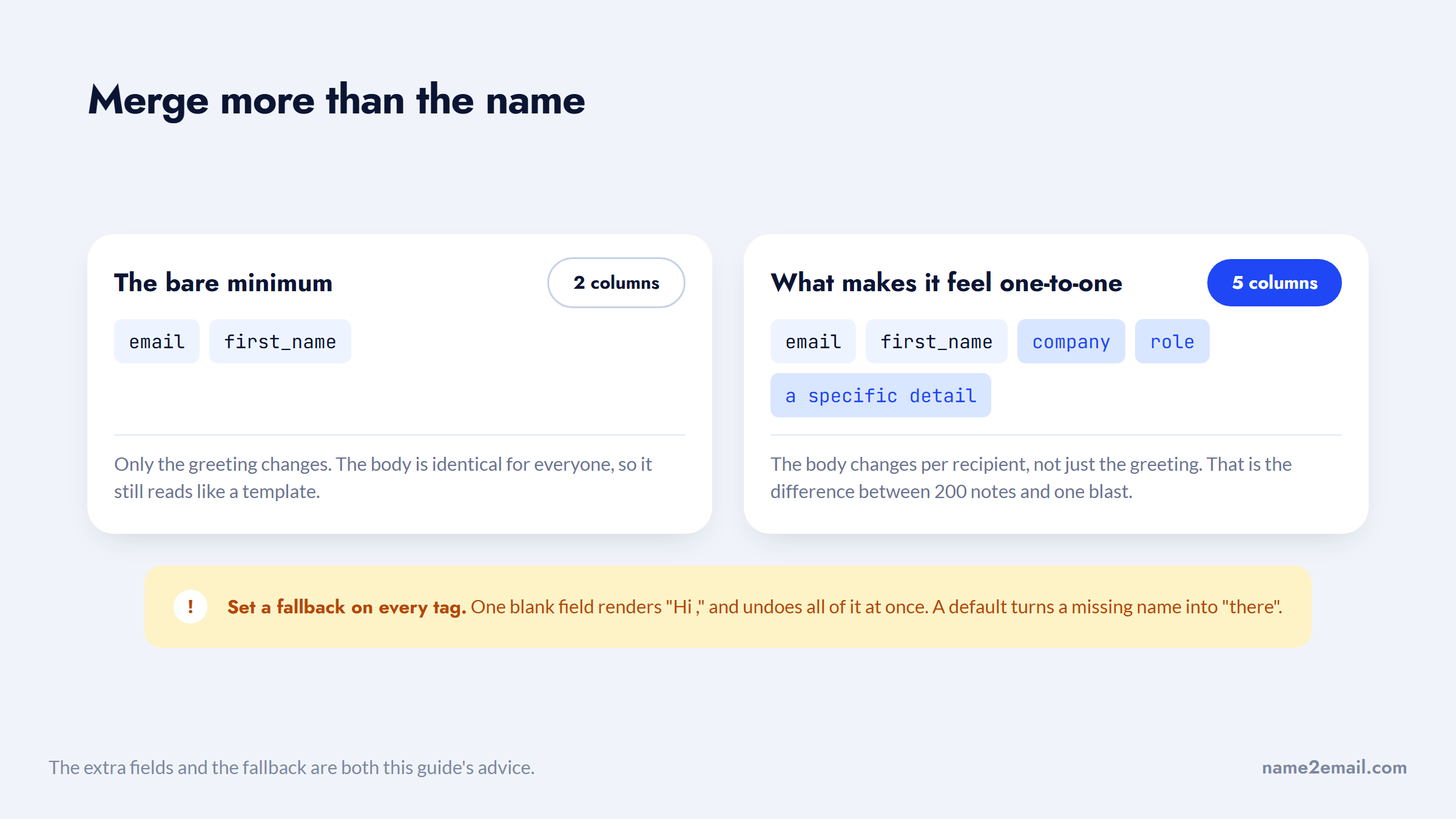
Skip heavy images and formatting for cold sends, since plain, simple emails feel personal and land in the inbox more often. And preview before you send: check the merge with Preview Results, because one broken field like "Hi ," undoes all the personalization at once. To guard against blanks entirely, set a fallback value for each merge tag, so a missing first name renders as "there" instead of nothing; Gmail's mail merge lets you set a default when you insert the tag, and Word does the same through its field options.
Done well, a merge to 200 people can feel like 200 individual notes. Done lazily, it feels like exactly what it is, which is why these details matter more than which tool you picked.
Sending Limits You Need to Know
Every method above runs into a wall: provider sending limits, designed to stop spam. Google and Microsoft publish these numbers, and blowing past them gets your account throttled, so plan your batches around them.
Platform | Daily limit | Per message | Notes |
|---|---|---|---|
Free Gmail | ~500 recipients/day | ~500 | Counts BCC recipients |
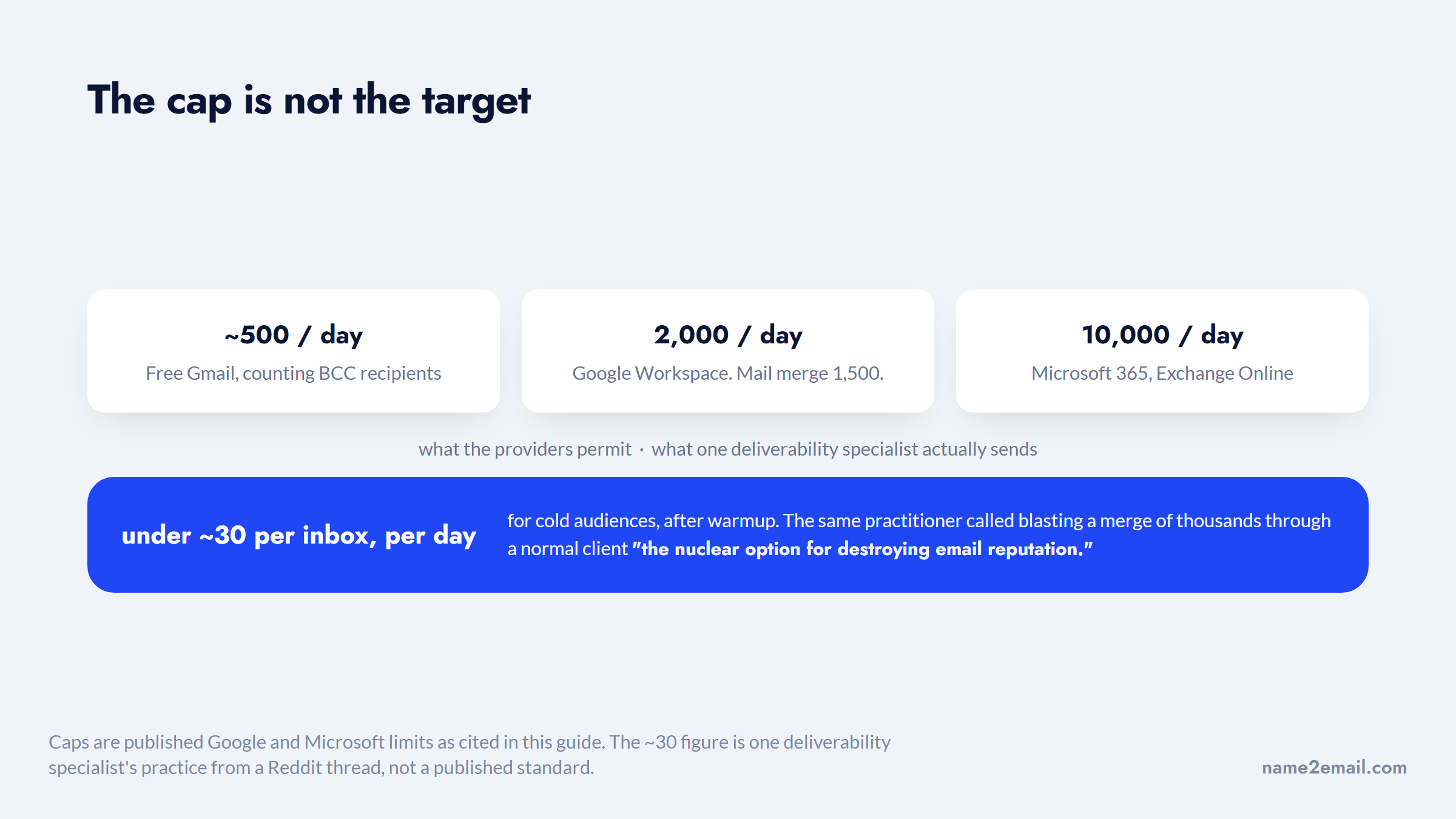
Google Workspace | 2,000/day | 500 external | Mail merge: 1,500/day |
Microsoft 365 | 10,000 recipients/day | 500 | Exchange Online |
These are ceilings, not targets. Sending anywhere near them from a normal account, especially to cold contacts, looks like bulk mail and hurts your reputation regardless of the technical limit.
If you're ramping a newer sending account, start far below these numbers, a few dozen emails a day, and build up over several weeks. It also helps to spread a batch across the working day rather than firing it in one burst, since a steady trickle looks more like human sending than a single spike of hundreds. Providers read a sudden spike from a cold account as a spam signal no matter what the published limit allows, so a slow ramp protects you more than the cap does.
For anything beyond a warm, small list, the daily cap is the least of your concerns. Deliverability is, and that's where a dedicated tool comes in.
When to Graduate to a Dedicated Tool
Native methods are perfect for a personalized note to 30 colleagues or customers. They start to strain when you need scale, automation, or tracking, and that's the signal to move up.
Move to a dedicated tool when you need any of these: true per-recipient personalization across a large list, automated follow-up sequences, open and reply tracking, deliverability infrastructure like separate sending domains and warmup, or volume beyond the daily caps.
For personal Gmail without Workspace, mail-merge add-ons like Mailmeteor or YAMM add merge and tracking with a modest free tier. For real outbound at scale, cold email software handles sequences, inbox rotation, and tracking.
The caution from people who do this daily is worth heeding. In one Reddit thread, a deliverability specialist called blasting a mail merge of thousands through a normal client "the nuclear option for destroying email reputation," and noted their team keeps sends under about 30 per inbox per day for cold audiences after warmup.
Put that number next to the published caps and the gap is two orders of magnitude.
The lesson: volume through Gmail or Outlook isn't the same as safe volume. If you're sending cold at scale, our guide to the best cold email software covers the tools built for it.
Find the Emails Before You Send
Whichever method you pick, it needs a clean list of real addresses, and that's the step people rush. A merge to a list full of guessed or dead addresses bounces, and those bounces chip away at the sender reputation that decides whether the rest of your emails land.
This is where Name2Email fits, at the very start, and it's free. You type a person's name and company domain into Gmail's compose window, and we surface the likely work-email patterns and let you confirm the right one by hovering, since Gmail shows the person's name and photo when it recognizes an address. No account, no credits, no cap.
To be honest about the limits: it's pattern-based, works best on corporate domains, and can't guarantee every address, so verify before a big send.
Used this way, the workflow is clean: find each address free with Name2Email, confirm it's real, then load a tidy list into your Gmail or Outlook merge. Our guide on how to verify an email in Gmail covers that verification step, and you can Add to Chrome to start building the list before you merge.
Common Mistakes When Emailing Many People
A few habits turn an individual send back into an obvious blast. When you send an email to multiple people, avoid these five.
The first is using CC instead of BCC, which exposes every address to everyone, a privacy problem and sometimes a compliance one. The second is treating BCC as personalization; it isn't, and if you want names and details you need a merge or a tool. The third is ignoring daily limits, because sending near the cap, especially to people who don't know you, gets your account throttled and your mail filtered.
All five are easy to do by accident, and each has its own cost.
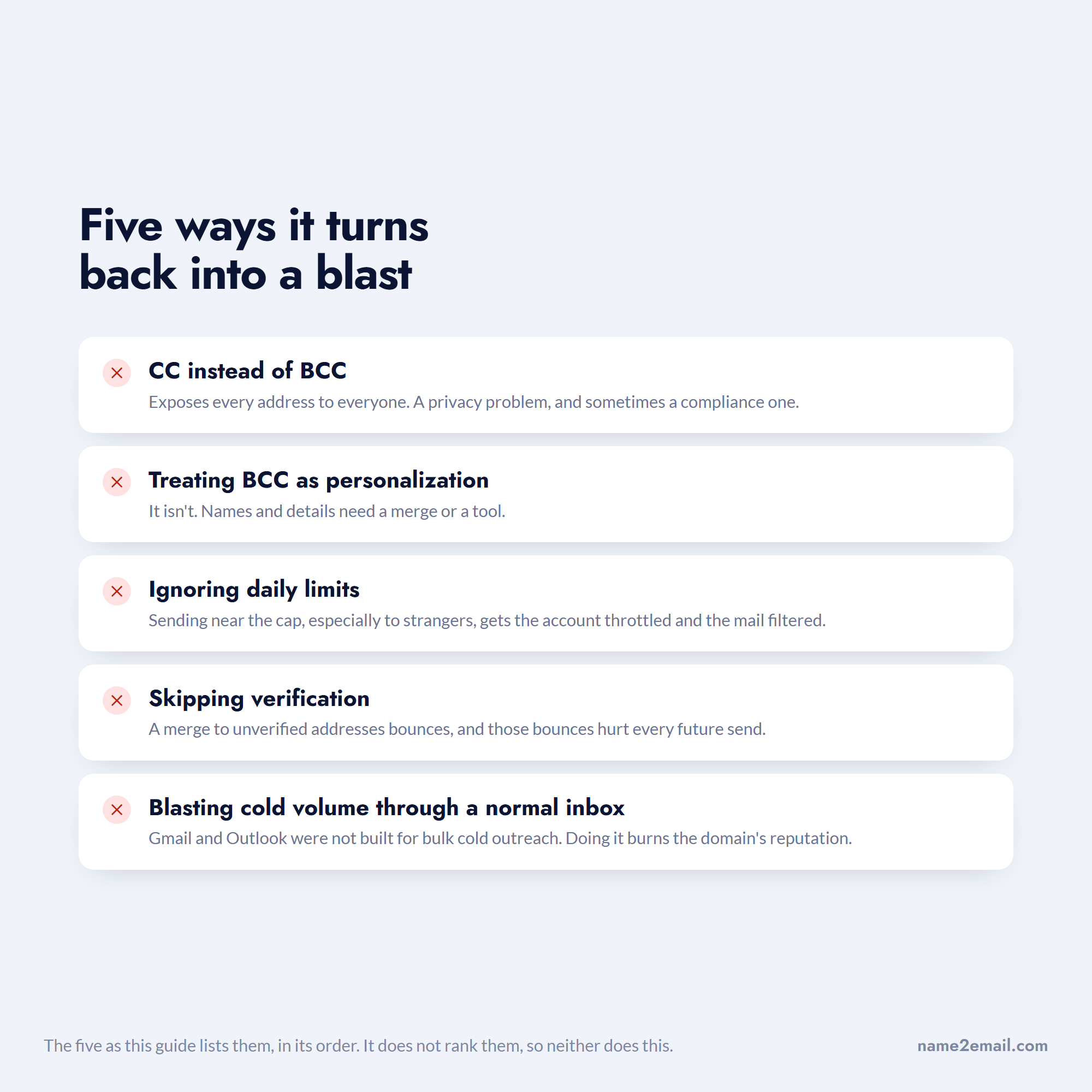
The fourth is skipping verification, since a merge to unverified addresses bounces, and those bounces hurt every future send. The fifth is blasting cold volume through a normal inbox, because Gmail and Outlook weren't built for bulk cold outreach, and doing it burns your domain reputation.
Sidestep these and your individual emails stay individual, and you stay out of the spam folder. The safest path to email multiple people well is a clean, verified list and the method that matches your volume.
Choosing Your Method
The right method comes down to two questions: do you need personalization, and how many people. For a genuinely identical message to a modest group, BCC is fine. For a personal email to each person, use Gmail's mail merge on Workspace or Word mail merge with Outlook. For a large, tracked, automated send, move to a dedicated tool.
Start with the simplest method that meets your need, keep your list clean and verified, and stay well under the daily limits, and each recipient gets an email that feels written for them, which is the whole point of sending individually.
Two answers are enough to pick the method.
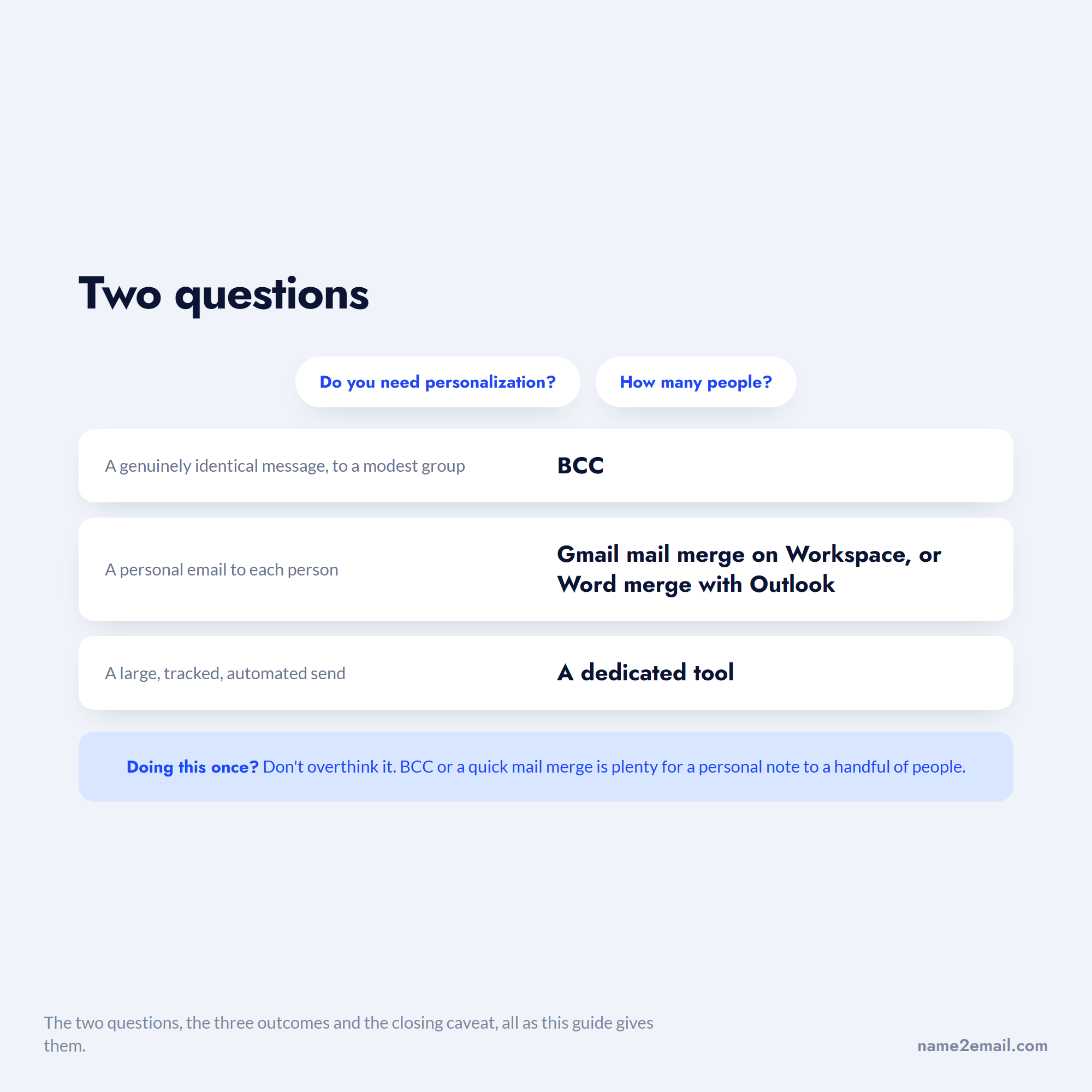
One last piece of judgment: if you're doing this once, don't overthink it. BCC or a quick mail merge is plenty for a personal note to a handful of people.
If sending to a group is a repeating part of your work, spend ten minutes on a proper mail-merge setup or a dedicated tool. You'll earn that time back on every send, the replies get better, and you stop worrying about who can see whom on each message.
Frequently asked questions
Use mail merge, not BCC. In Gmail (Workspace), toggle Mail Merge on and use `@firstname` tags; in Outlook, use Word's mail merge with an Excel list. Both send a separate, personalized copy to each person, arriving as its own thread with no shared recipient list. BCC only hides addresses; it doesn't send individual copies.
Fastest for identical messages: put your address in "To" and everyone in "Bcc." For personalized individual emails, use Gmail's built-in mail merge (Workspace only), which sends each person a unique copy with their name merged in, up to 1,500 recipients a day. Free Gmail without Workspace needs a mail-merge add-on like Mailmeteor.
Use Word mail merge with classic desktop Outlook. Build an Excel list, start an E-mail mail merge in Word's Mailings tab, insert merge fields like «First_Name», and finish with Send E-mail Messages. Each person gets an individual, personalized email. For a plain identical message, BCC works, capped at 500 recipients per message.
Free Gmail caps around 500 recipients per day, Google Workspace allows 2,000 per day (1,500 via mail merge), and Microsoft 365 permits up to 10,000 recipients per day with 500 per message. These are anti-spam limits built to curb bulk senders, so sending near them, especially to cold contacts, can throttle your account and hurt deliverability.
You can't attach a folder directly, but you can compress it. Right-click the folder, choose "Compress" or "Send to, Compressed (zipped) folder," and attach the resulting .zip file. For large folders that exceed Gmail's 25MB or Outlook's attachment limit, upload to Google Drive or OneDrive and share the link instead.

We build Name2Email, the free Chrome extension that finds work emails inside Gmail. We write about outreach, prospecting, and getting more replies.
Connect →