- 1Searching for an email address runs one direction: you start with a name and a company, and you end with that person's work address.
- 2Gmail is the fastest place to start, because it already holds every address you have ever emailed, and its search operators and contact suggestions surface the rest.
- 3When Gmail comes up empty, move outward in order: Google, the company's own pages and directories, then the domain's address pattern.
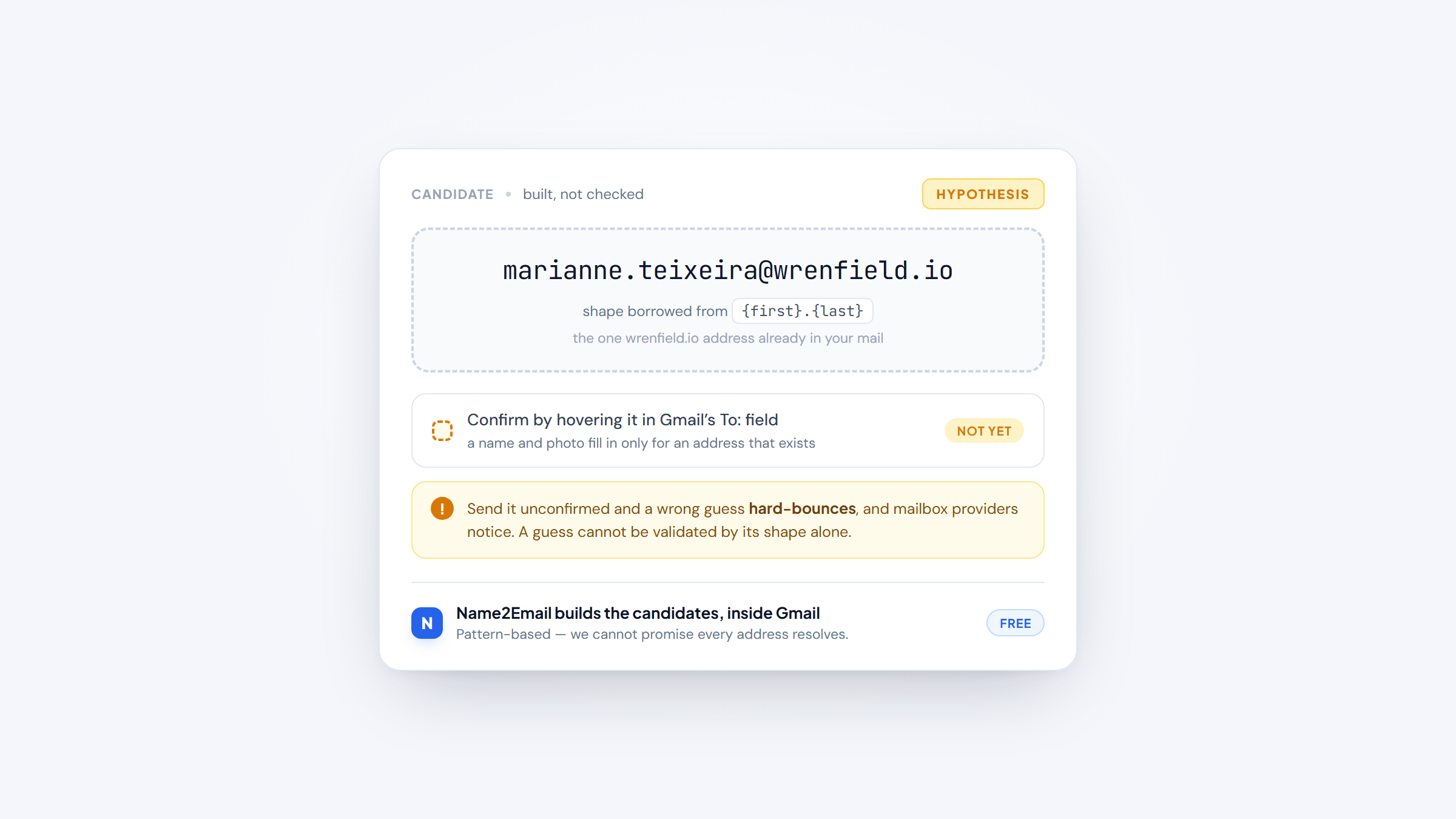
- 4A pattern guess is a hypothesis, not an answer. Confirm the address before you send, because a wrong guess bounces and bounces cost your sender reputation.
You have a name, a company, and a draft that needs to go out today. The only thing missing is the address, and hunting for it can eat ten minutes you did not budget for.
One Harvard Business Review study puts the daily load at about 120 messages, with only around a quarter of them answered, so a slow search carries a real cost. Every extra minute you spend guessing is a minute the message is not in front of the reader.
The good news is that forward email search, going from a person to their work address, follows a repeatable order. Start inside Gmail, where your own history does most of the work. Widen to Google, then to the company's public pages, and only then fall back on the pattern trick. This guide walks that order so you can search email addresses in Gmail quickly and stop burning time on tabs you did not need to open.
What Searching for an Email Address Actually Means
Forward email address searching and reverse lookup are two different jobs, and knowing which one you are doing saves a detour. The forward job starts with a name and a company and ends with an address. People also reverse search email addresses when they want to know who is behind a message before they reply. This guide covers how to search for someone's email address, meaning the forward job only.
That split matters because the two jobs use different tools and different pages. If you already have an address and want to find its owner, that is a reverse lookup, a separate task with its own steps that looking up an address walks through. If all you have is a person to reach, keep reading.
The forward job also has a natural finish line. It ends when you have one address you can confirm, not a list of candidates. Finding an address for a single person is a minute of work when you follow the order below, and it turns into twenty when you skip around. Every step here serves one goal: how to search for someone's email address without the detour.
Get the Two Inputs Right Before You Search
Every forward search needs two things: the person's full name and their company's domain, the part after the @ sign. To find an address by name and land on the right person, get both exactly right, because the domain is what narrows a common name like "John Smith" to one person out of thousands.
The domain is easy to miss and easy to fix. If the company's website is acme.com, the domain is acme.com, not the Gmail address a founder uses for personal mail. A misspelled or wrong domain is the single most common reason a search comes back empty, so confirm it before you spend time looking.
Here are the fastest places to pin down a name and a domain when you have neither.
- The person's LinkedIn headline or profile, which names both their employer and their role.
- The company's About or team page, where the leadership is usually listed by name.
- Any previous email in the thread, whose signature block carries the domain.
- A conference agenda, a podcast page, or a byline, which often name the person and the employer together.
- The company's careers page, which states the corporate domain even when the brand name differs.
Once you have a full name and a domain, the rest of this guide is about turning those two facts into a confirmed address. The LinkedIn route is worth knowing too, since a profile often carries the employer field you need and occasionally the address itself.
How to Search Email Addresses in Gmail Itself
Gmail is where you should always start, and searching for an address in Gmail begins with the fact that your own mailbox already knows people you have corresponded with. It holds every address you have ever emailed, replied to, or been copied on, going back years, and Gmail keeps those contacts even when you forget them.
Gmail search is also more precise than most people realize. The operators below let you search by sender, recipient, domain, attachment, and even label, which is how you find a person whose name you half remember.
Operator | What it finds | Example |
|---|---|---|
from: | Mail sent by a person | from:amara@acme.com |
to: | Mail you sent them | to:amara |
cc: / bcc: | People copied in | cc:amara@acme.com |
has:attachment | Messages with files | from:amara has:attachment |
subject: | A word in the subject | subject:invoice |
in:anywhere | Search Spam and Trash too | in:anywhere amara |
label: | Mail under a label | label:clients amara |
The workflow for a single person takes about thirty seconds. Type the person's name into the Gmail search bar and press Enter, then add the domain if their name is common by searching for the name and the company together. Read the sender line on any match, because the address is often right there in the result list.
If the name is too common to find, narrow with an operator instead of scrolling. Searching from:acme.com surfaces everyone at the company who has ever written to you, and searching to:acme.com does the same for the mail you sent. Add in:anywhere when a message may have been archived or filtered, since normal search skips Spam and Trash by default.
Two habits keep this fast. Search by domain rather than by full name when you know the company, and open the result in the same window rather than a new tab, so you do not lose the draft. Most addresses you need are already in your history, and this step takes a fraction of the time the later methods do. If you only remember one place to look first, make it this one.
Search Gmail Contacts and the To: Field
Gmail does more than search old mail. As you type a name into a new message's To: field, it suggests matching contacts and previous recipients, which turns the compose window into its own search box. This is the fastest place to look up addresses you already know, so start typing and watch what appears before you go looking anywhere else.
The suggestions come from a mix, including people you have emailed and contacts saved in Google Contacts. If a name never appears, that person is not in your Google account yet, which is a useful signal that you are about to do a genuinely new lookup rather than an old one you forgot.
Hover is the part that makes this reliable. When Gmail recognizes an address, hovering over the suggestion shows the person's name and profile photo, pulled from their Google account. A wrong pattern still suggests, because Gmail suggests whatever you typed, but the hover card only fills in for a real match. That difference is how you tell a guess from a confirmed address.
Our free extension works the same way inside the compose window, which is the whole point of building it there. It puts the pattern suggestions and the hover check in the same box you are already typing in, so you never leave Gmail to find an address.
Search Google for a Public Address
When Gmail cannot help, the next stop is Google. Learning how to search for email addresses in Google comes down to one move: search for the address, not just the person. A directory listing, a conference PDF, a press release, a GitHub profile, or a staff page can all carry the exact address you need, and Google indexes them.
Common names return thousands of unrelated results, so combine the name with the domain and look for pages where the two appear together. How to search for email addresses in Google is really how to search for two strings at once, and a company's own site, its partners, and industry directories are the pages most likely to hold a real address.
Quotes, site:, and filetype: each do real work here, a syntax we lay out in Google's search operators. The short version for this guide: name plus domain, then a quoted candidate address if you have a guess, because quotes force an exact match and surface the pages that actually list it.
One warning applies here. A published address is often a generic one like info@ or sales@, which reaches a team rather than the person. Useful as a fallback, less useful for personalized outreach, so treat a generic hit as a sign to keep going rather than a finished search.
Check the Company Site and Public Directories
Company websites are a steady source of real addresses, and an email address search by company is the step most people skip. Knowing the four or five pages where addresses cluster saves you from clicking through the whole site. Hunter's analysis of about 905,000 company websites found that 18.7% mentioned at least one email address, and those mentions tend to sit in predictable places.
Look here first, in roughly this order.
- The Contact page, which may list named staff or a routed contact form.
- The About or team page, where leadership and department heads are named.
- Author pages on the company blog, each with a short bio that often includes a contact link.
- The press or newsroom page, which lists a media contact.
- A staff or provider directory, common at agencies, clinics, universities, and firms.
- A PDF such as an annual report or a prospectus, where a filetype search can turn up a named address.
An email address search by company should not stop at the main site, because public registries are the other underused option. Professional bodies, chambers of commerce, licensing boards, and trade directories publish member records that include business contact details, and those records are free to search. They are especially useful when the person runs their own firm and the company domain is thin.
If the person works at a company you cannot place, the corporate side of this search is its own job, and it comes down to reading a company's own pages before you start guessing at patterns.
Infer the Address Pattern from the Domain
Most companies issue addresses in one predictable format, and once you know the pattern you can build a strong candidate for any named person. Hunter's study of more than 12 million addresses found that roughly half of the companies it analyzed use the first@ format, with first.last and f.last among the other common shapes.
The table below lists the patterns worth trying, in the order that usually pays off. The notes are rules of thumb from practice, not a published ranking.
Pattern | Example | Notes |
|---|---|---|
first | amara@acme.com | The most common single format |
first.last | amara.okafor@acme.com | Common at larger firms |
f.last | a.okafor@acme.com | Common in finance and law |
firstlast | amaraokafor@acme.com | No separator, still frequent |
last.first | okafor.amara@acme.com | Rarer, worth one try |
last | okafor@acme.com | Common at small firms |
The fastest way to learn a domain's pattern is to find one address at that company and copy its shape. In a sales thread on Reddit, one rep described exactly this shortcut, using a known colleague's address at a company to assume the same format for a different person there, and noted it "doesn't work all the time." That caveat is the honest part, so treat the borrowed pattern as a strong hint rather than a fact.
One Gmail-specific quirk is worth knowing here. Gmail ignores dots in addresses, so john.smith@gmail.com and johnsmith@gmail.com reach the same inbox. That makes Gmail addresses unusually forgiving, though it says nothing about the work domains you are usually searching.
Confirm the Address Before You Send
A pattern gets you a candidate. It does not get you a confirmed address, and the gap between the two is where sender reputations get damaged. Send to a guess that does not exist and the message hard-bounces, and mailbox providers notice.
The confirmation step is built into Gmail. Type the candidate into the To: field and hover over it. If Gmail shows a name and photo, the address is real. If nothing appears, the pattern was wrong, so try the next one. Repeat until a suggestion fills in, which turns a guess into something you can trust.
There is a protocol-level reason to confirm rather than assume. As the SMTP standard puts it, a mail server must not report an address as valid unless it has actually verified it, and many servers do not check until the message body arrives.
In plain terms, a guess cannot be validated by shape alone, and the only way to confirm an address with confidence is to test it. Services built to find an address's owner run the opposite direction for the same reason, because the address is the starting point rather than the goal.
If you need certainty at scale, a dedicated check does more than a Gmail hover, and the methods for how to verify an address go further than this guide needs. For a handful of messages, the hover check is enough, because it catches the wrong guesses before they leave your outbox.
Find the Address Without Leaving Gmail
The fastest way to search email addresses is the one that never opens a new tab. We built Name2Email, a free Chrome extension, to put the search inside Gmail's compose window, so a business email address search goes from a name and a domain to a confirmed address without breaking your flow.
Name2Email works the way you would guess from the sections above. Type a name and a company domain in the compose field, and we generate the likely patterns for that person. The suggestions drop into the To: field, you hover to confirm, and the real one shows up with the person's name and photo, exactly like Gmail's own contact cards.
The honest limits matter as much as the convenience. We are pattern-based, so we generate likely addresses from public naming conventions rather than pulling from a stored database. We work best with corporate domains, and we cannot guarantee every address, because some people use a format no pattern predicts. When we cannot confirm a match, that is a signal to try the company's own pages next.
What we do not do is charge you for the attempt. Name2Email is free forever, with unlimited lookups, no account, and no per-lead credits, which is the difference between a free find and one that stops at a paywall. It turns a business-address search into a single step inside the draft. Install the free extension once, and you can search from your next draft.
A Repeatable Order of Operations
The methods to search email addresses work best in a fixed order, because each one is slower and less certain than the one before it. Start with the fastest and stop as soon as you have a confirmed address, rather than running all six every time.
Step | Method | What you need | Typical time | Best when |
|---|---|---|---|---|
1 | Gmail mail search | A name | Under a minute | You have corresponded before |
2 | Gmail / Contacts suggestions | A name | Seconds | The person is a saved contact |
3 | Google search | Name plus domain | One to two minutes | An address is published online |
4 | Company site and directories | A company | Two to five minutes | You need a named person |
5 | Pattern inference | Name plus domain | Under a minute | One address at the domain is known |
6 | A dedicated finder | Name plus domain | Seconds | You want one tool for all of it |
The order is the time-saver, not any single method. Recruiters on Reddit describe manual hunting eating five to ten minutes per contact, which is fine for a handful of high-value targets and ruinous across a list of hundreds. Following the ladder keeps the expensive steps rare and the cheap ones common.
If you find yourself at step 5 often, that is the moment to look at the wider market of email finding tools and pick one that lives where you work. For most people in Gmail, that is a finder that runs inside the compose window rather than a separate web app.
The Mistakes That Cost You Time
Most slow email searches are not hard, they are just inefficient, and the same few habits cause the delay. A quick checklist before you start will save more time than any single trick.
- Searching a common name without adding the company domain.
- Using a personal Gmail address as the company domain.
- Skipping Gmail and going straight to Google.
- Guessing one pattern, sending it, and ignoring the bounce.
- Opening a new tab for every step instead of working inside Gmail.
- Trusting a search-result snippet instead of opening the page itself.
Run down that list once and the search usually falls out in the first two steps. The habit that matters most is starting in Gmail, because the address you need is so often already sitting in your own history.
Search Faster and Send to the Right Person
Forward email address searching is a short list of steps in a fixed order, and once you know the order the work takes a minute instead of ten. Gmail first, Google second, the company's own pages next, and the pattern trick last, with a confirmation before anything leaves your outbox.
The last mile is often the address itself, and that is the part we built for.
Name2Email surfaces work emails inside Gmail while you compose, so a name and a domain turn into a checked address without a single new tab. It stays free, asks for no signup, and does its best work on corporate domains; we will also say plainly that pattern matching cannot promise every address. Add to Chrome and find your next contact's address without leaving the draft.
Frequently asked questions
Start by searching their name in the Gmail search bar, then add the company domain if the name is common. Search from:domain.com or to:domain.com to see everyone at the company who has emailed you, and check the To: field suggestions when the name is a saved contact. That covers most of how to search email addresses for someone you have already emailed; if nothing turns up, widen to Google and the company's own pages.
Yes. Gmail search, Gmail's contact suggestions, Google, and company websites all cost nothing, and most single lookups finish there. A free search for email address data covers the common cases, and for the pattern step, Name2Email is a free extension with unlimited lookups and no account, so you can confirm a candidate address inside Gmail without a credit meter.
Combine the person's full name with their company domain, then look for pages where the two appear together, such as a staff page, a directory, or a press release. To search email address by name when nothing is published, infer the domain's pattern from one known address there, and confirm your candidate by hovering over it in Gmail's To: field.
Gmail only suggests addresses it recognizes from your account, so someone you have never emailed may not appear even when the address is real. It also ignores addresses outside your own contacts until you type one. When Gmail comes up empty, the person is simply new to your account, and the company's public pages are the right next stop.
It works as a hypothesis, not a guarantee. Formats like first@ and first.last@ cover a large share of companies, so a patterned guess is often right, but some addresses follow no predictable rule. Confirm the guess in Gmail before you send, because an unconfirmed guess that bounces is worse than no address at all.

We build Name2Email, the free Chrome extension that finds work emails inside Gmail. We write about outreach, prospecting, and getting more replies.
Connect →