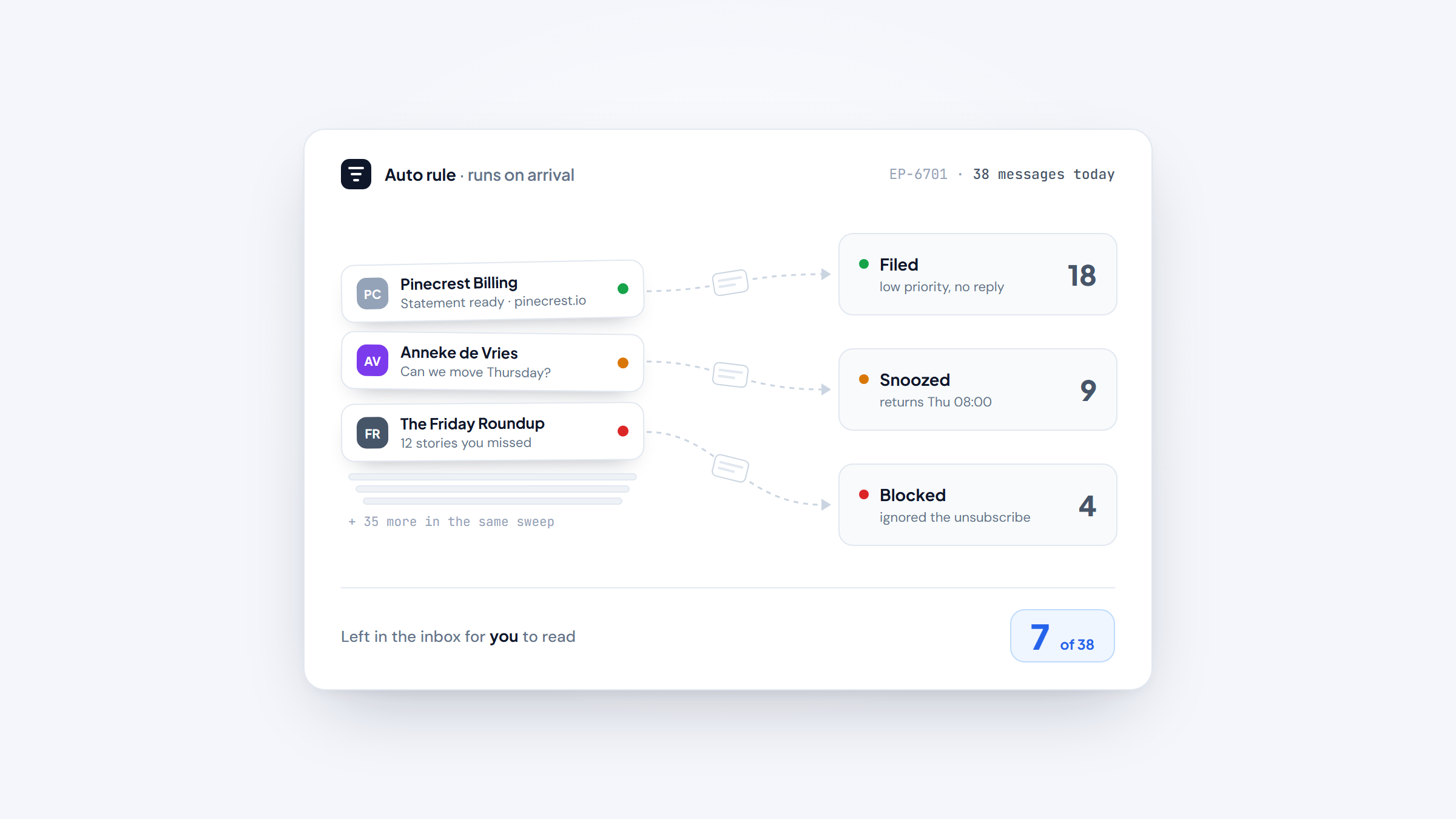
- 1Email productivity tools cut the time you spend sorting, writing and answering mail. They are not the sequencing platforms that send cold email at scale, which is a different job with its own roundup.
- 2Most picks fall into one of three jobs: a faster client (Superhuman, Mimestream), automatic triage (SaneBox, Shortwave), or bulk cleanup (Clean Email), with shared-inbox tools covering team workflows.
- 3Prices run from $0 (Thunderbird, Spark's free plan) up to $49 per user per month on the entry paid tiers, and most paid tools bill per seat with a lower annual rate.
- 4Finding one person's address before you write is a separate job. We built Name2Email for it, and it is free.
The average employee spends 57% of the workday communicating and 43% creating, and the heaviest email users among them spend 8.8 hours a week inside their inbox. Those numbers come from Microsoft's Work Trend Index, a survey of 31,000 people in 31 countries. Almost a full working day, every week, goes to reading and answering mail.
That is the time these tools are built to claw back. This guide covers 10 of them, with every price read from the vendor in October 2026. The scope is the inbox you already have: unified views, snooze, scheduling, templates, AI drafting and keyboard triage.
One boundary is worth setting early: the inbox you already have is the whole scope here.
Disclosure first: Name2Email is the free extension we build, and it looks up one person's work address inside Gmail. That places it outside the inbox category, so it is not ranked below. Its maker, Reply.io, takes the top row of the table, a stake we would rather name than bury.
What Email Productivity Tools Actually Save You Time On
Email productivity software removes a repeated action from your inbox. Sometimes that action is sorting, and a filter decides what stays in view. Sometimes it is typing, and a saved snippet answers a routine question. Sometimes it is remembering, and a reminder brings a thread back when the reply is overdue.
Software that sends and sequences cold email at scale answers a different question, and we compare it in our roundup of best email outreach tools. This list finishes the mail that arrives; it does not start a new thread a thousand times.
The category divides by job, and buying the wrong job wastes the subscription. A faster client makes every click quicker but leaves the sorting to you. A filtering service files the mail but does nothing for your writing speed. A cleanup tool empties the backlog and then goes quiet.
The cost of leaving all of it manual is measurable. In a controlled study, Gloria Mark and her co-authors at UC Irvine found that people finished interrupted tasks faster, but paid for it with higher workload, more stress, more frustration, more time pressure and more effort.
The study concluded that even 20 minutes of interrupted work produced those effects. Every ping that pulls you out of a draft and back into it costs something real.
So the tools below are judged on whether they take work out of the inbox, not on how many features they add to it.
The Best Email Productivity Tools in 2026
The table pairs each tool's strongest use with its entry price and its biggest drawback. All prices were read from the vendors' pages in October 2026.
Tool | Ideal for | What it does | Main drawback | Entry price | Rating |
|---|---|---|---|---|---|
Reply.io | Outbound teams answering replies at volume | Unified reply inbox, AI response handling, scheduler | Not a standalone inbox | From $49/user/mo annual | ★★★★★ |
Superhuman | Keyboard-first speed on a large inbox | Split inboxes, Auto Draft, calendar and scheduling | No free tier | $25/member/mo annual | ★★★★★ |
Shortwave | AI-first triage inside Gmail | AI filters, bundles, AI search over history | Gmail only, AI usage metered by tier | $30/seat/mo | ★★★★★ |
SaneBox | Automatic filtering you set once | SaneLater, SaneNoReplies, custom snooze | No composing tools | $4.54/mo biyearly | ★★★★★ |
Clean Email | Clearing a backlog in bulk | Smart Folders, Auto Clean rules, Unsubscriber | Cleanup only, not a daily client | $9.99/mo | ★★★★☆ |
Spark Mail | A free cross-platform start | Smart Inbox, unified inbox, AI writing | AI writing needs a paid tier | $0 (Free) | ★★★★★ |
Missive | Teams sharing one inbox | Shared inboxes, internal chat, assignments | Per-user pricing, workspace-heavy | $14/user/mo annual | ★★★★☆ |
Mimestream | Mac users who live in Gmail | Native macOS app, Gmail API sync, fast search | Gmail and macOS only | $4.99/mo | ★★★★☆ |
Thunderbird | A free desktop client you own | Unified inbox, tabs, Quick Filter, add-ons | Desktop only, dated interface | $0 | ★★★★☆ |
Front | Customer-facing shared inboxes | Shared inboxes, rules, templates, AI Compose | Priced and shaped for teams | $25/seat/mo annual | ★★★★☆ |
The entry price only tells part of the story, because a per-seat tool and a flat tool scale differently. Each entry below says where a tool shines and where it falls short.
Reply.io
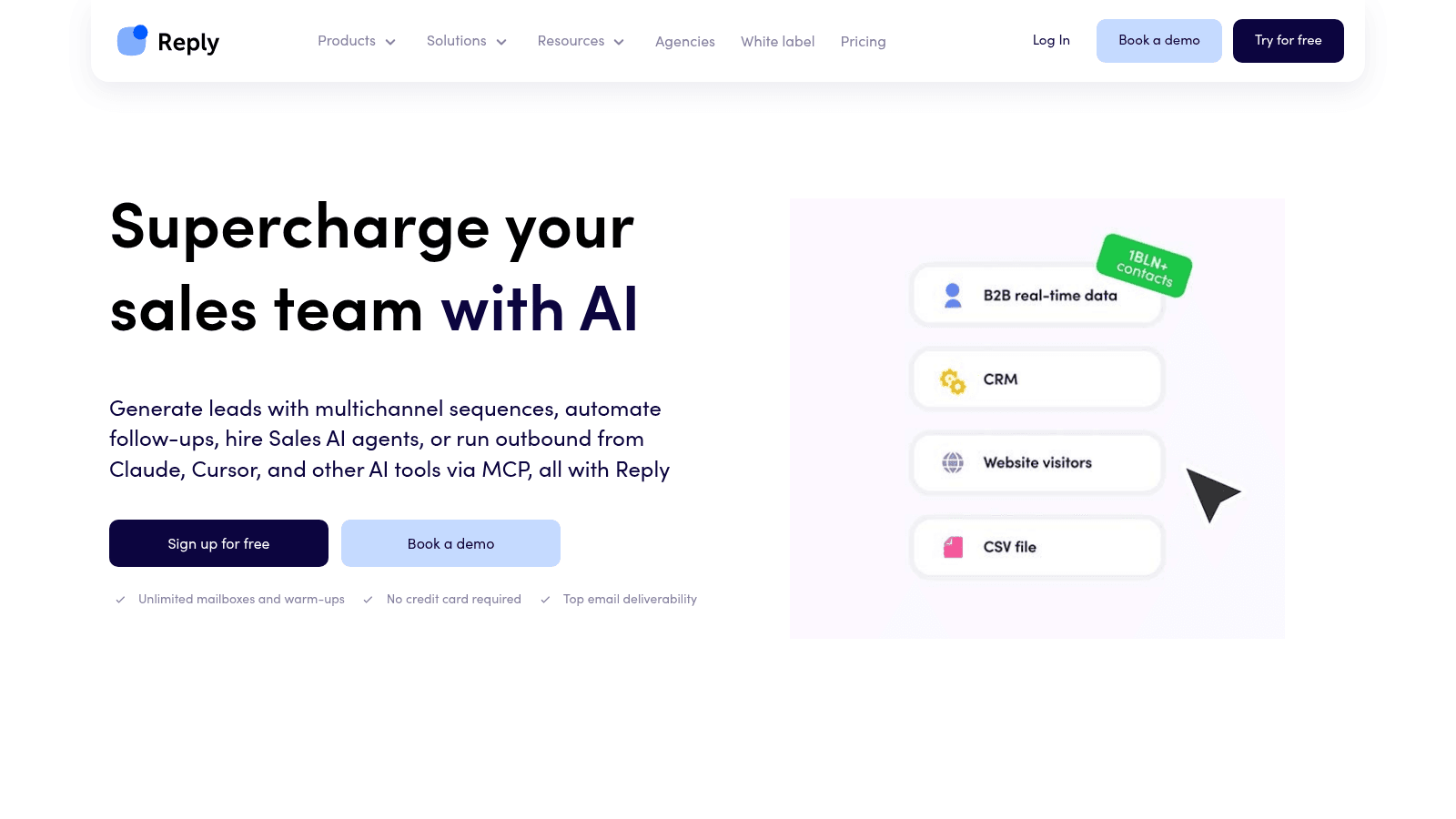
Best for: Outbound teams answering replies at volume
Reply.io is a sales engagement platform rather than an inbox client, and one part of it fits this list: the unified inbox that gathers replies to a sequence, drafts answers with AI, and schedules the next step. If your inbox problem is a queue of responses to outbound, that is the screen you would live in.
The framing should stay honest. Sequencing, sending and warmup belong to a different category, which we compare separately. What saves time here is narrower: one thread per prospect, AI response handling, and a scheduler that books the meeting from the reply.
Two limits matter before you commit. The 1-billion-contact database ships inside the platform and is not sold separately, so a team that only wants the inbox pays for data it may not use. The trial lasts 14 days and includes 50 verified credits, with no free plan after it.
Key features:
- Unified inbox that collects replies across email, LinkedIn and calls
- AI response handling that drafts a reply, then sends on approval
- Scheduler that turns a "what time works?" reply into a booked meeting
- Automated mailbox warmup included on every tier
- CRM sync so each reply lands on the right record
- Optional AI SDR for the sourcing and reply loop
Pricing: Annual billing puts the entry email tier at $49 per user each month ($59 month to month), rising with active contacts; the multichannel tier is $89 on annual billing ($99 monthly). Add-ons cover LinkedIn automation at $69 a month per account, plus calls and SMS at $29 a month per user.
Pros: one view for every reply, AI drafting inside the thread, scheduling without leaving the inbox, warmup included, strong CRM sync
Cons: no free plan and no way to buy the inbox piece alone, built for outbound rather than personal mail
How to start using it:
- Begin the 14-day trial, then link a single mailbox.
- Point a short sequence at your own address to see the reply flow.
- Set the unified inbox as your default landing view.
- Turn on AI response drafts and require approval before anything sends.
- Connect your calendar and let the scheduler handle the time-request replies.
Why it's a good email productivity tool: for a reply-heavy outbound inbox, it compresses open, read, answer and book into one screen.
Final verdict: a strong fit when your inbox is a stream of outbound replies, and the wrong shape for personal mail. Reply.io builds our free finder, so we disclose that stake.
Superhuman
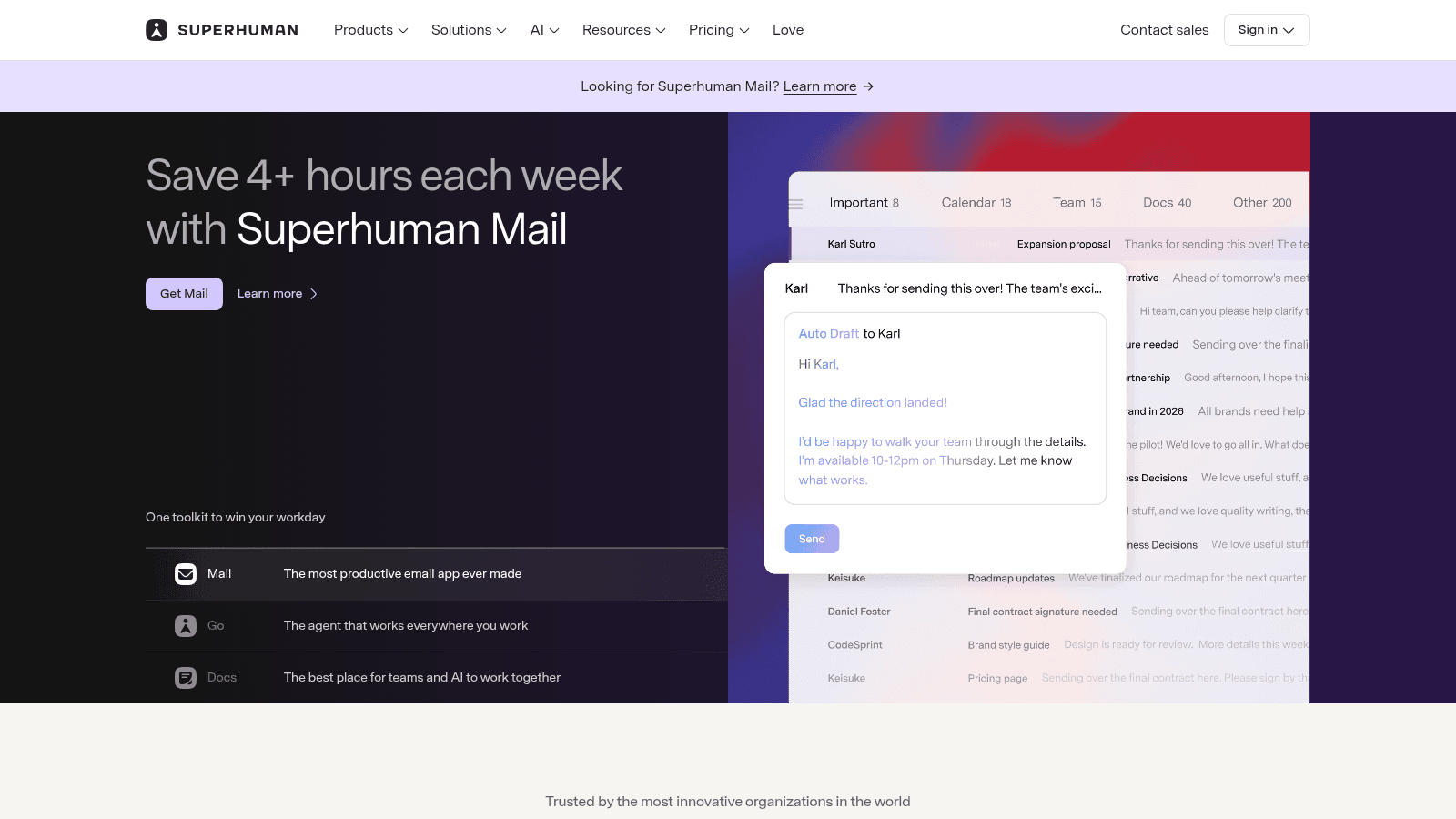
Best for: Keyboard-first speed on a large inbox
Superhuman is built on the idea that the fastest inbox is the one you never touch with a mouse. Every action has a shortcut, the app opens in a fraction of a second, and AI handles the first pass.
The toolkit now reaches past the mail client. Superhuman Mail runs the inbox, Go handles follow-ups and meeting notes, and Docs covers shared writing, so one subscription spans more of the day. Auto Draft writes a first reply from the thread, Ask AI answers questions about your mail, and a unified admin view keeps personal and shared accounts together.
There is no free plan, and billing is per member per month at a lower annual rate.
Key features:
- Split inboxes that sort by importance rather than arrival time
- Auto Draft replies and Ask AI answers drawn from the thread
- Snippets, send later, read statuses and follow-up reminders
- Calendar and scheduling without leaving the inbox
- Shared views and unified admin for team accounts
Pricing: Starter is $25 per member per month billed annually, and Business is $33 per member per month billed annually, with a further discount for teams of five or more. Enterprise is quoted.
Pros: keyboard triage few clients match, deep keyboard coverage, AI drafting built into the thread
Cons: no free tier, per-seat pricing adds up, the full toolkit costs more than a single-purpose add-on
Where it wins: if you send well over a hundred emails a day, the seconds saved per message are the product.
Final verdict: the pick when raw speed on a large inbox is worth a monthly fee.
Shortwave
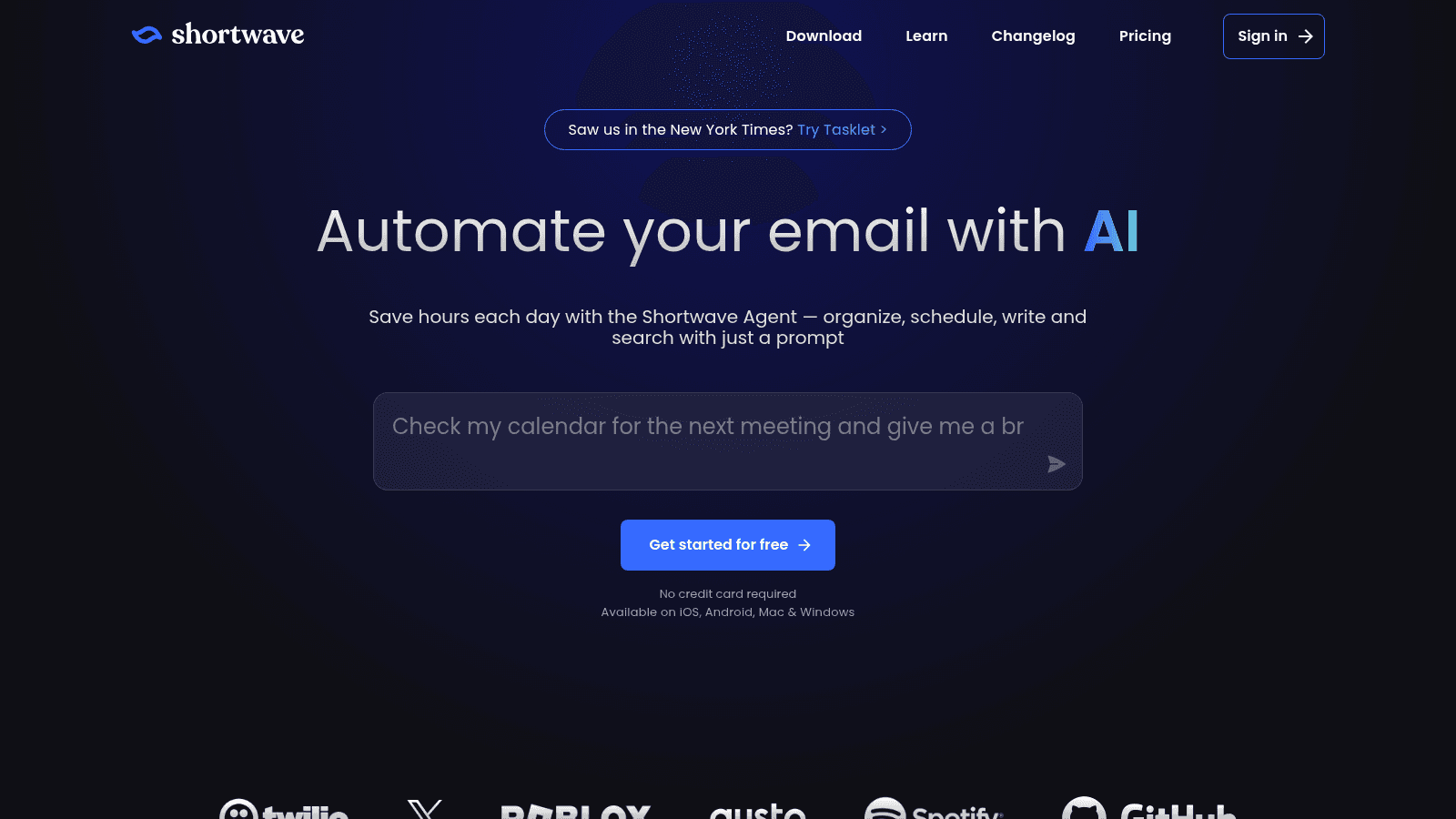
Best for: AI-first triage inside Gmail
Shortwave is an AI email productivity tool layered onto Gmail. You describe what should happen to a class of mail, and its AI filters label, archive, star or delete as it arrives, which removes a daily sorting pass.
Search is the second half of the pitch. The assistant answers questions over years of history and summarizes long threads, so you stop scrolling through a chain to find the one decision inside it. Bundles group promotions and newsletters, and Todos turn a message into a task without leaving the inbox.
Shortwave runs on a 14-day trial with no permanent free plan, and the AI usage allowance rises with each tier.
Key features:
- AI filters that act on new mail from a written prompt
- Bundles and Splits that group related messages automatically
- AI search and summaries across up to five years of history
- Todos for turning threads into tasks
- Delivery schedules, snippets and team comments
Pricing: Business is $30 per seat per month, Premier is $45 and Max is $120, all after a 14-day free trial. AI usage, search threads and filter count scale with the tier.
Pros: strong AI triage, generous search history, real team features on higher tiers
Cons: per-seat pricing, AI allowance is metered per tier, Gmail accounts only
Why buyers shortlist it: it does the sorting and the summarizing in one place, which removes two passes over the same thread.
Final verdict: the best AI-native inbox for a Gmail team.
SaneBox
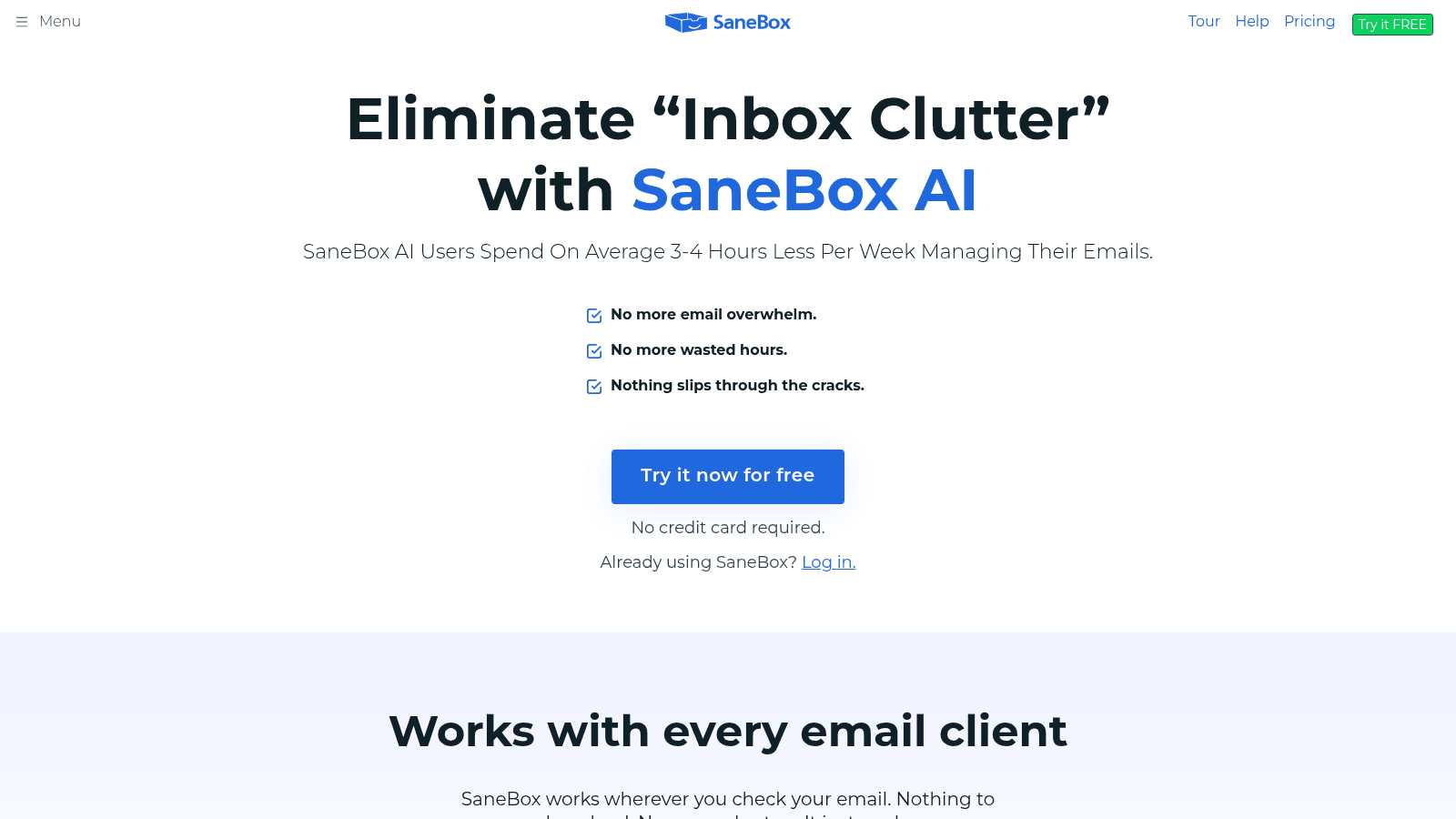
Best for: Automatic filtering you set once
SaneBox sits behind whatever email client you already use. It reads your history, learns which senders and subjects you skip, and moves that mail out of the inbox before you see it, so the change shows up everywhere without a new app.
The feature set is a menu of fixes for common inbox noise. SaneLater files low-priority mail, SaneNoReplies surfaces messages nobody answered, SaneBlackHole buries a sender, and Custom Snooze returns a thread when you need it. A daily digest summarizes what was set aside.
The entry tier is the cheapest paid plan here, though the lowest rate needs a longer billing cycle.
Key features:
- SaneLater that moves low-priority mail out of the inbox
- SaneNoReplies that lists messages still waiting on a reply
- SaneBlackHole, Custom Snooze and a daily digest
- Works with Gmail, Outlook, Apple Mail and most mobile clients
Pricing: Snack is $4.54 per month paid biyearly for one account and two features; Lunch is $7.46 for two accounts and six features; Dinner is $22.04 for four accounts and every feature. A 7-day trial includes all features.
Pros: works with the client you already use, the lowest paid entry price here, genuinely set-and-forget
Cons: the best rate needs a two-year cycle, features are shared per account tier, no composing or scheduling tools
What it is genuinely good at: cutting the volume that reaches your inbox without asking you to change apps.
Final verdict: the lowest-effort way to shrink what you have to read.
Clean Email
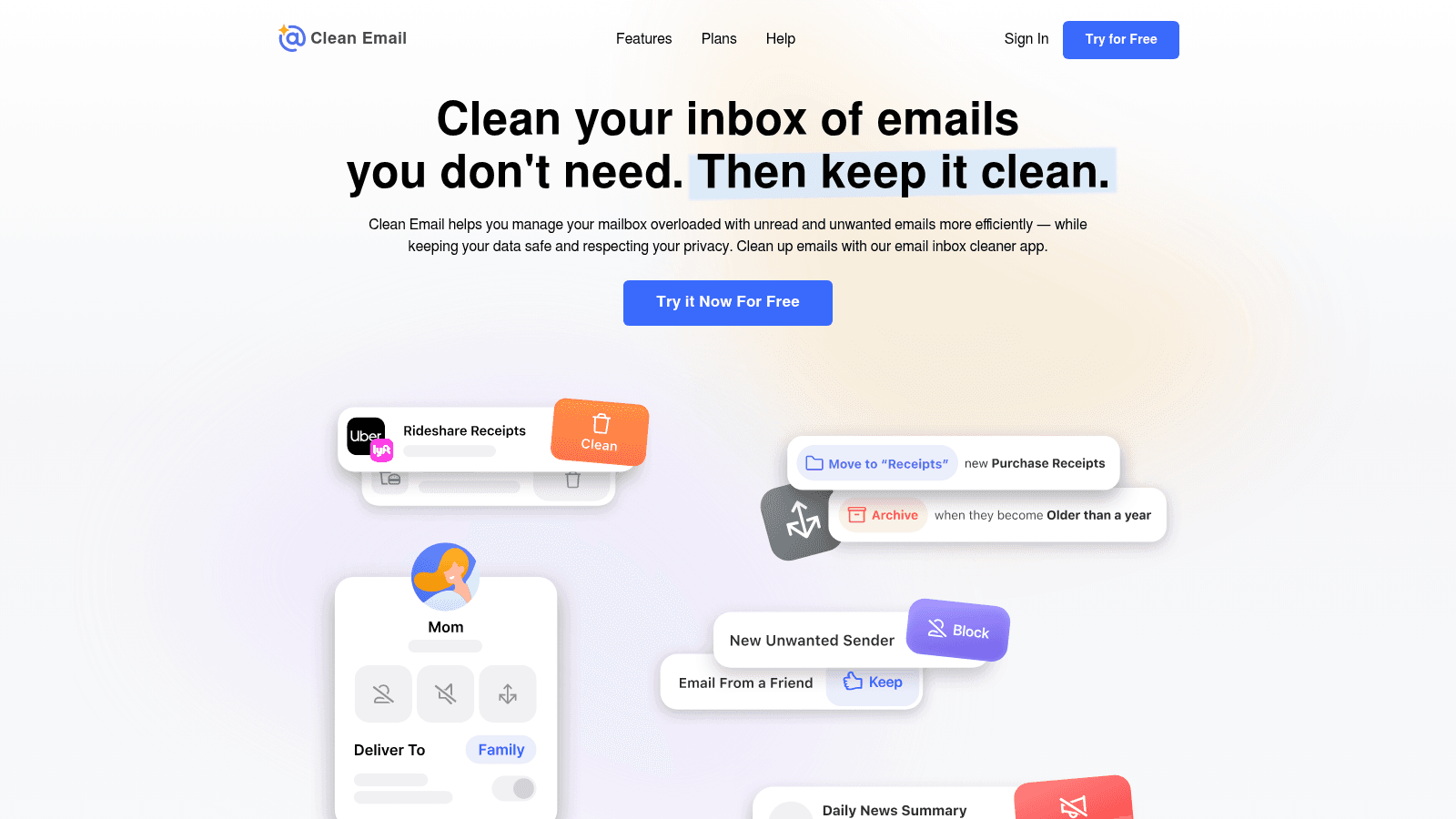
Best for: Clearing a backlog in bulk
Clean Email goes after the mailbox you already have. It sorts messages into Smart Folders, groups the ones you are likely to remove into Cleaning Suggestions, and lets you act on hundreds at once instead of one at a time.
Two features do the heavy lifting. Auto Clean applies rules to new mail as it arrives, for example archiving social notifications or messages older than a year. Unsubscriber sends unsubscribe requests on your behalf and blocks senders who ignore them, which addresses the source rather than the symptom.
Clean Email is a cleanup tool rather than a daily client, so it pairs with the app you read in.
Key features:
- Smart Folders that group old, social and bulk mail
- Auto Clean rules that act on new mail automatically
- Unsubscriber that blocks senders who ignore unsubscribe requests
- Screener for approving mail from new senders
Pricing: subscriptions run month to month at $9.99 for one account, $19.99 for five and $29.99 for ten, and the yearly rate saves up to 70%. Accounts can be shared across a family or small team.
Pros: fast bulk cleanup, the strongest unsubscribe handling on this list, multi-account pricing is generous
Cons: not a daily reading app, no composing or scheduling, costs more per month than SaneBox at the single-account tier
Its real strength: turning a huge backlog into a handful of review screens.
Final verdict: worth paying for once, and again every few months.
Spark Mail
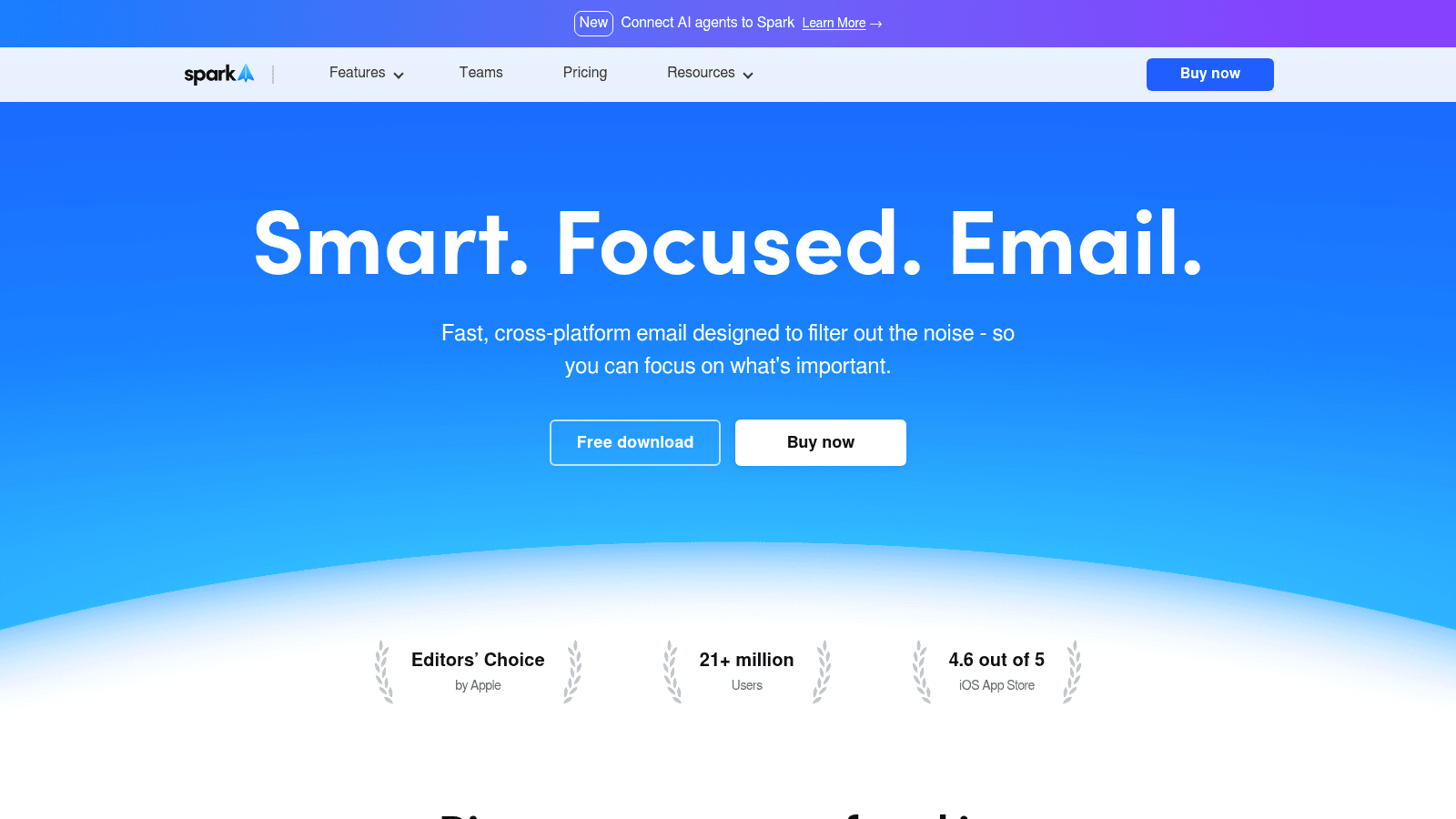
Best for: A free cross-platform start
Spark is the free option that behaves like a paid one. Its Smart Inbox separates personal mail from notifications and newsletters, a unified view pulls several accounts together, and the same app runs on Mac, Windows, iOS, Android and the web.
The free plan covers the essentials: smart sorting, snooze, send later and multiple accounts. The paid tiers add an AI assistant for writing and summarizing, priority support, and team features such as shared drafts and comments, which is where it starts to overlap with Missive.
For anyone who wants a modern client without a subscription, it is the clearest starting point on this list.
Key features:
- Smart Inbox that separates people, notifications and newsletters
- Free unified inbox, snooze and send later
- AI writing and summaries on paid tiers
- Team collaboration and comments on Pro
Pricing: the Free plan is $0. Plus is $8.25 per user per month billed yearly ($99 a year) or $10 monthly; Pro is $16.58 billed yearly ($199 a year) or $20 monthly. Enterprise is quoted.
Pros: a genuinely usable free tier, one app across every platform, low paid entry price
Cons: AI writing sits behind Plus, team features need Pro, cross-platform sync can lag
Why it made this list: it is the cheapest way to get a smart inbox on every device you own.
Final verdict: the default for anyone who wants the features without the invoice.
Missive
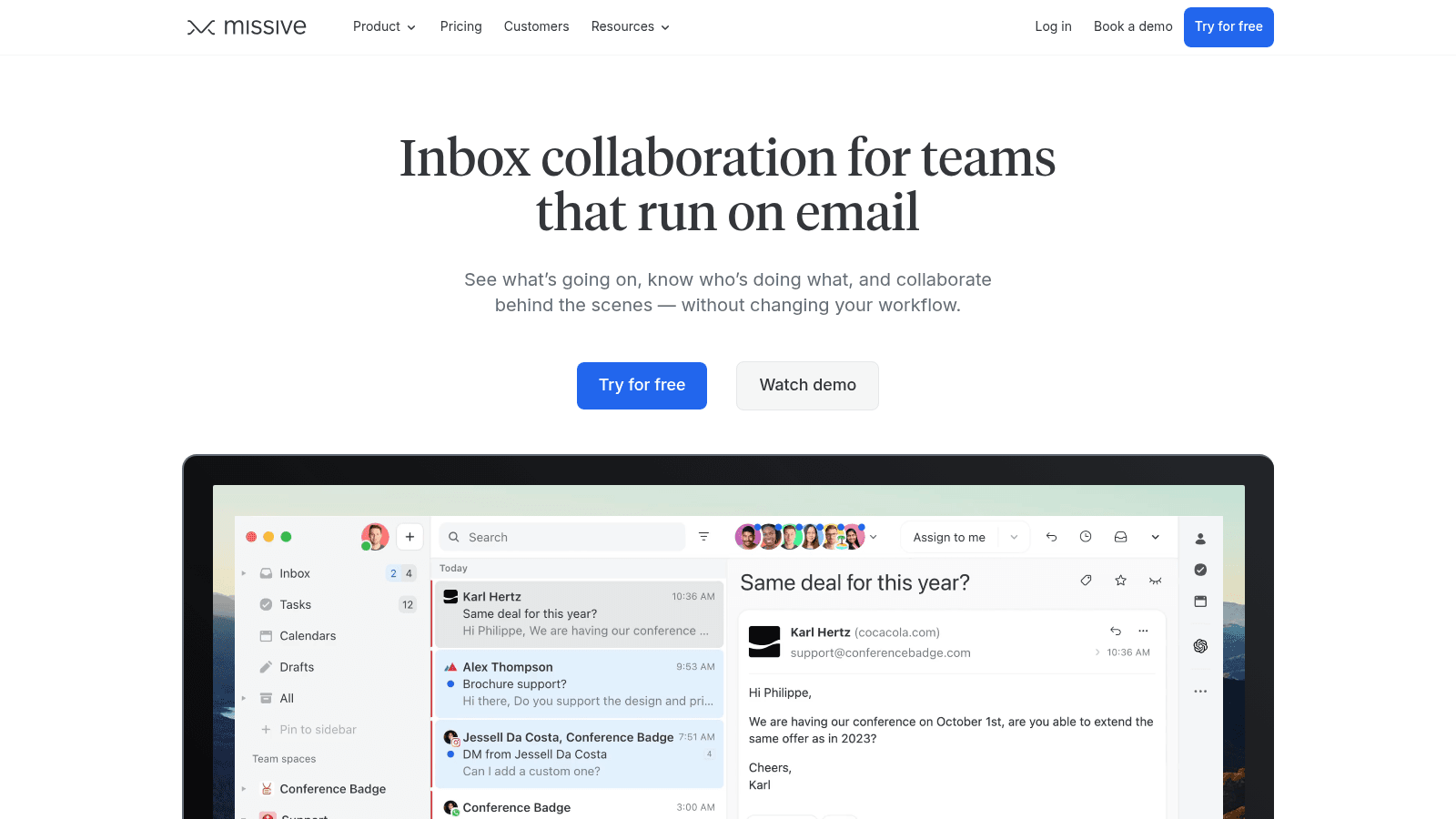
Best for: Teams sharing one inbox
Missive turns a shared inbox into a small workspace. Mail, SMS and social messages land in team inboxes where you assign a thread to a person, discuss it internally, and reply, all without forwarding anything around.
The internal comment thread is the feature that saves the most time. A question about a message stays attached to the message instead of moving to chat, so the answer is still there for the next person. Rules, canned responses and an AI assistant handle the repetitive parts, and the AI can run on your own key.
A solo user pays for collaboration features they may never open.
Key features:
- Shared inboxes with assignments and internal chat
- Internal comments that stay off the customer thread
- Tasks, snooze, send later and canned responses
- AI assistant with bring-your-own-key support
Pricing: Starter is $14 per user per month billed yearly, Productive is $24 and Business is $36, with a 20% yearly discount over monthly billing. A 30-day trial covers the Productive plan.
Pros: the best internal discussion of any shared inbox, a 30-day trial, AI on your own key
Cons: per-user pricing, analytics and SSO sit on higher tiers, more workspace than a solo user needs
Where it beats the alternatives: the comment thread replaces the "did you see this?" forward.
Final verdict: the pick for a small team that answers one shared address.
Mimestream
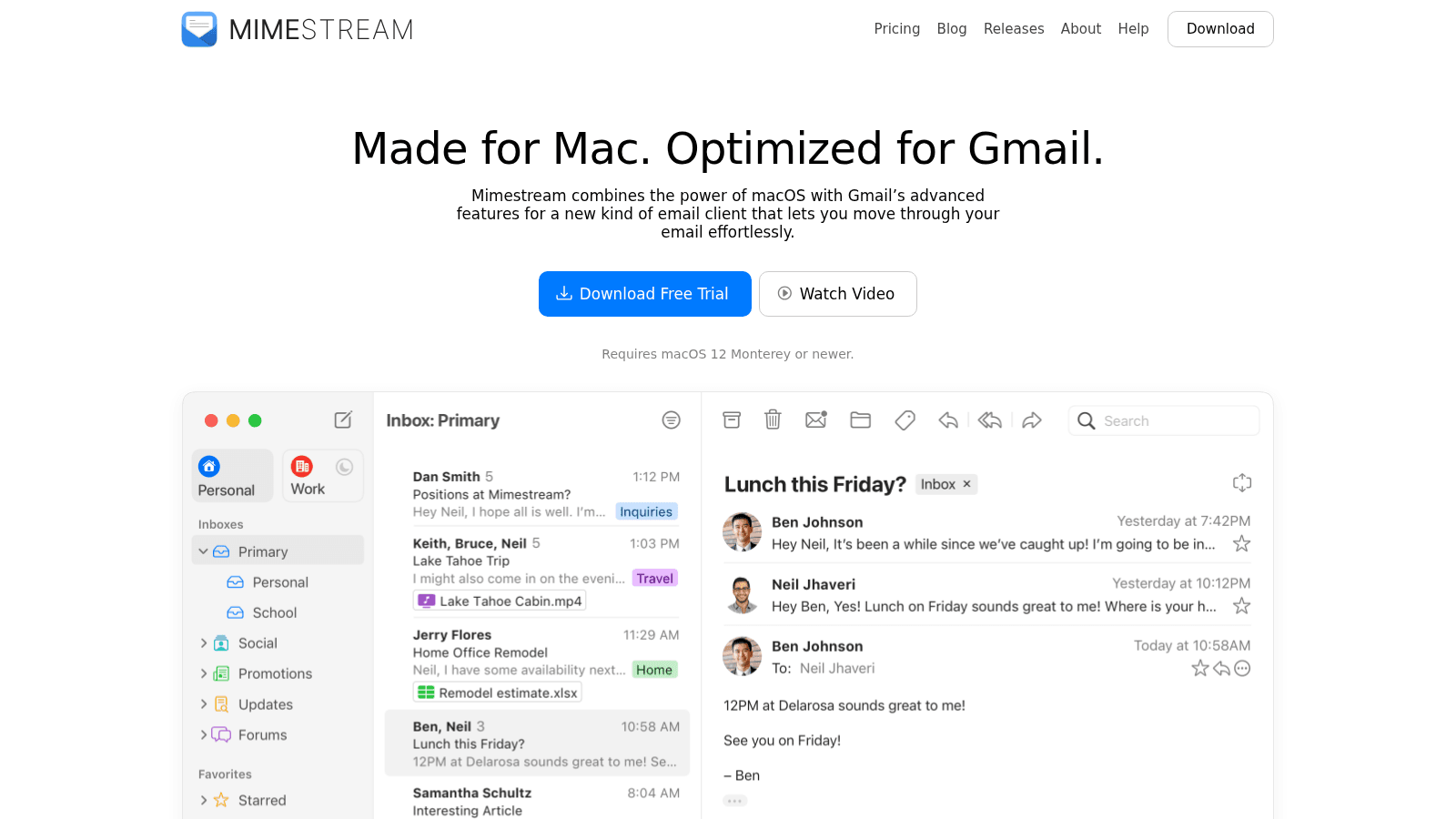
Best for: Mac users who live in Gmail
Mimestream is a native macOS client built only for Gmail. It talks to the Gmail API directly rather than through an IMAP bridge, so labels, filters and search behave the way Gmail intends and the app stays fast on a large mailbox.
The appeal is fit rather than features. It looks and runs like a Mac app, supports several accounts in one window, and leans on keyboard navigation for the whole inbox. There is no team layer and no Windows version, which keeps it simple for a single user on one platform.
Mimestream costs less per year than almost any other paid tool here.
Key features:
- Native macOS app synced through the Gmail API
- Keyboard shortcuts and fast local search
- Multiple accounts in one unified inbox
- Gmail labels, filters and system notifications
Pricing: $4.99 per month or $49.99 per year, after a 14-day free trial. It requires macOS 12 or later.
Pros: fast and native, no browser tab, one of the cheapest annual prices here
Cons: Gmail only, macOS only, no team features
Why Mac users shortlist it: it feels like Apple built Gmail into the system.
Final verdict: the lightest paid upgrade for a Mac-based Gmail user.
Thunderbird
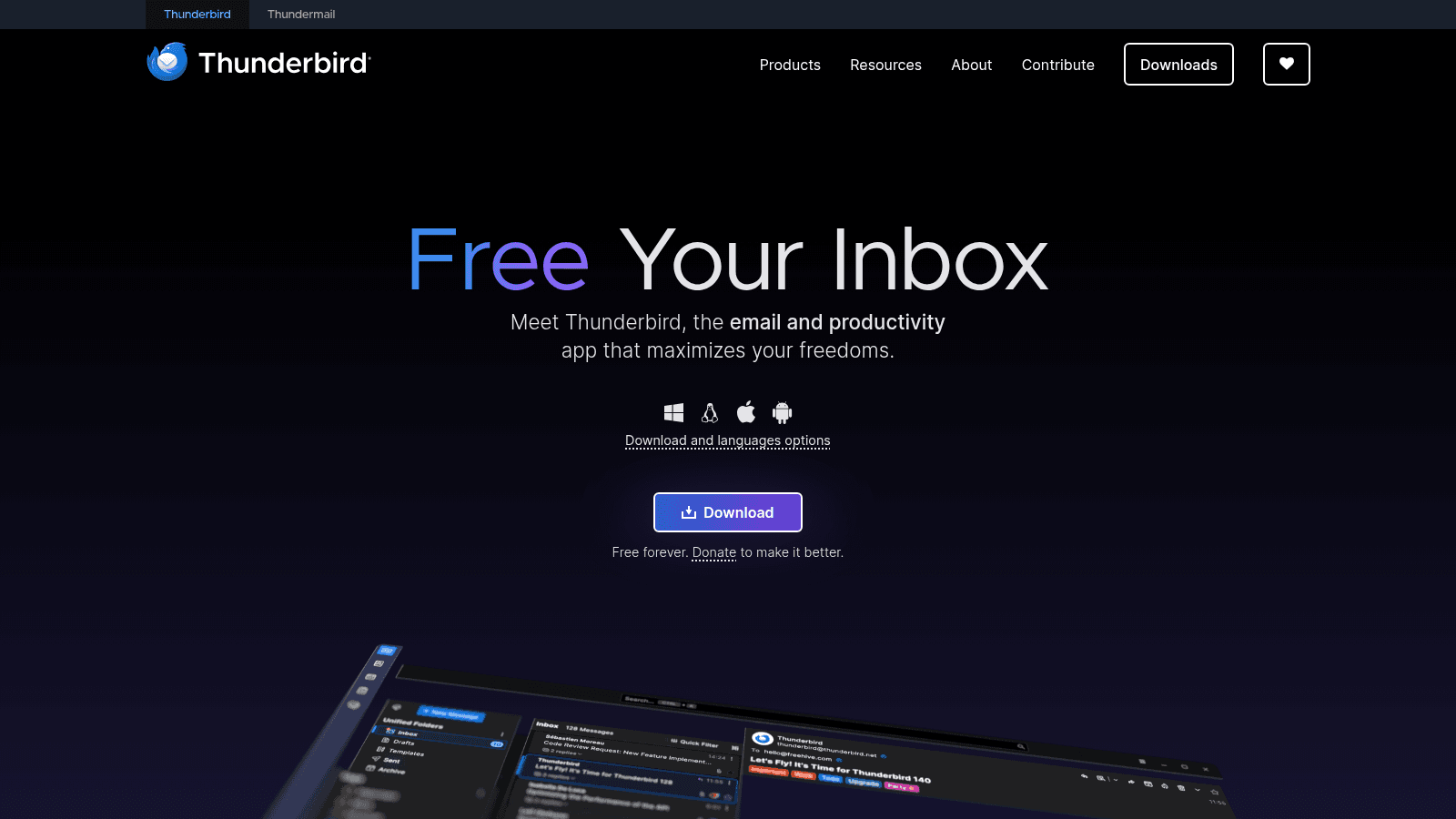
Best for: A free desktop client you own
Thunderbird is the free, open-source desktop client from Mozilla. It handles Gmail, Outlook and plain IMAP accounts in one window, and nothing about it requires an account or a subscription.
Its inbox tools are older but still effective. Tabs keep several folders open at once, Quick Filter searches the list in front of you, and the unified inbox merges accounts that you would otherwise check one by one. Calendar, tasks and a large add-on library fill in the rest.
The trade-off is polish and platform: it is desktop only, and the interface shows its age.
Key features:
- Free and open source, no account and no tracking
- Tabs and a unified inbox across accounts
- Quick Filter to search the messages on screen
- Calendar, tasks and an add-on library
Pricing: free. The project asks for donations but does not put features behind them.
Pros: no cost, no lock-in, works with any provider, extensible through add-ons
Cons: desktop only, dated interface, set-up takes longer than a hosted app
Why it earns a place here: it is the only zero-cost option that manages many accounts on the desktop.
Final verdict: the right default when the budget is zero.
Front
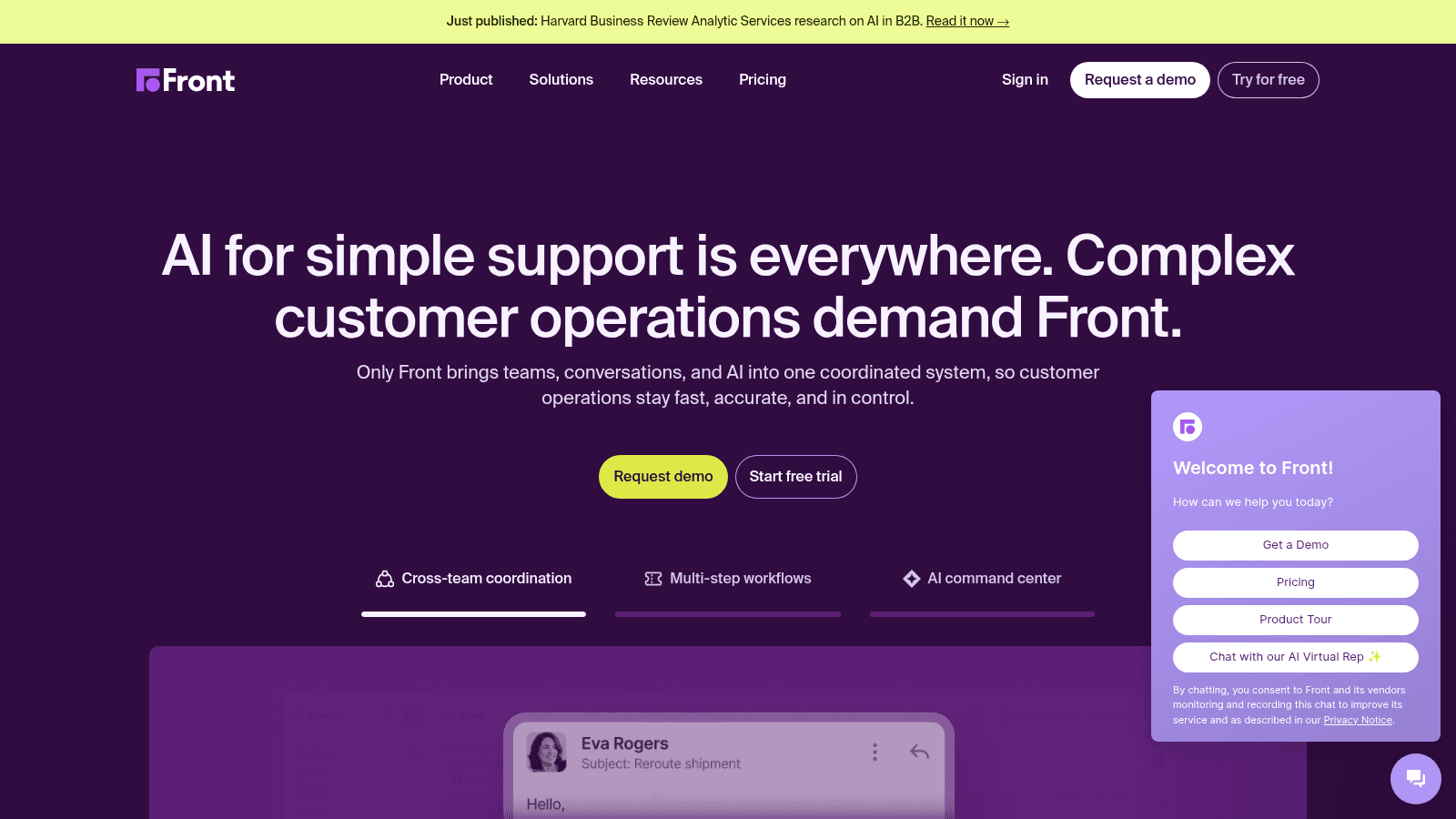
Best for: Customer-facing shared inboxes
Front is a shared inbox platform built for support and account teams rather than personal mail. Conversations from email, chat and messaging land in one queue where an owner, a status and a rule decide what happens next.
The time savings come from routing and templates. Rules tag and assign incoming mail so nobody triages by hand, message templates answer recurring questions in a click, and AI Compose and Summarize speed up the reply. Reporting shows where the queue is stuck, which a personal client cannot.
A single user will pay for coordination features they do not need.
Key features:
- One shared queue for email, chat and messaging, with a named owner
- Rules and automations that route and tag mail
- Message templates and meeting scheduling
- AI Compose, Summarize and an Autopilot agent
Pricing: Starter is $25 per seat per month, Professional is $65 and Enterprise is $105, all billed annually with a 24% discount. A 14-day trial covers the Professional feature set.
Pros: strong routing and rules, real reporting, AI included at Enterprise
Cons: priced and shaped for teams, overkill for one person, most AI tools are paid add-ons below Enterprise
Where it fits: when an inbox is a shared queue with owners and deadlines.
Final verdict: the pick for a support or account inbox, not a personal one.
How We Chose These Email Productivity Tools
The bar for entry was simple: a tool had to take repeated work out of the inbox, not hand you another feature to learn. That test removed sequencing platforms, CRM add-ons and calendar-only apps, since each answers a question this list never asks.
Prices were read on the vendors' own pages during October 2026, and the billing basis was recorded with each one, because a flat fee and a per-seat fee cannot be compared without it. If a price could not be confirmed at the source, the tool stayed off the list.
Tools that fit the account you already run ranked higher, since switching addresses means a migration that costs more time than it saves at first. Free tiers and trials are flagged throughout, because a week-long test against your own mail beats any comparison table.
Vendors' own accuracy claims were treated as marketing, not evidence.
What to Look For in an Email Productivity Tool
Start with the repeated action you want gone, not with the feature list, and treat the best AI tools for email productivity as a bonus rather than the point. A good email productivity app removes that action without adding a new one, and the shortlist below covers the rest. The best email productivity software disappears into the routine rather than announcing itself.
- Does it work with your provider, or does it need a new address and a migration?
- Is it billed per seat or flat, and what does that cost at your team size?
- Does the free tier or trial expose the feature you actually want to test?
- Judge the best productivity AI tools for email communication on whether a draft is reviewable before it sends.
- Does it protect focus time, or does it add another source of notifications?
The last question is the one most people skip, and it matters most. Mark's study showed that interruptions raise workload and stress even when the task gets done, so a tool that pings you more often can cost more time than it saves.
A filter is not the same as a cleanup either: managing a list across years, rather than a single inbox, is a separate purchase, and the email list management software options bill by contact count rather than by seat. Prefer the tool that runs quietly in the background over the one that competes for attention.
The same point shows up in practitioner threads. In an r/productivity discussion about all-in-one apps, the strongest comment argued that a single app for everything usually does each job worse, and that pairing a focused tool with the ones you already have beats replacing them. Take that as one user's account rather than a benchmark, though the entries above point the same way.
How to Choose the Right Email Productivity Tool
Match the email productivity app to the shape of your inbox, and the decision gets easy. The scenarios below cover most of the cases this list serves, and the best productivity AI tools for email communication sit at the drafting end of them.
If writing is the bottleneck rather than reading, the tool matters less than the words, and writing a good email covers the structure that earns a reply. If you are a solo user with a large inbox, the best AI tools for email productivity start with a fast client. Superhuman compresses the whole loop, and Mimestream does the same for Mac-based Gmail at a lower price.
If your problem is volume rather than speed, start with automatic filtering. SaneBox runs behind your current app, and Shortwave folds the same idea into an AI client for Gmail teams.
If the backlog is the crisis, clean it once with Clean Email and unsubscribe from the worst offenders, then decide what keeps the inbox clear week to week.
If several people answer the same address, the shared inbox matters more than any personal feature. Missive suits a small team that wants discussion in the thread, and Front suits a support queue that needs rules and reporting.
If the budget is zero, Thunderbird and Spark prove that free does not mean useless. Choose Thunderbird for a desktop client you control, and Spark for a modern app on every device.
Whichever you pick, keep the tool count low. Organizing the same mail in two places is its own form of clutter.
What Email Productivity Tools Cost in 2026
Entry tiers here run from $0 to roughly $49 per user per month, though the billing basis decides what you actually pay. The second table lists each plan and what it covers.
Tool | Entry price | Billing basis | What it buys |
|---|---|---|---|
Reply.io | $49/user/mo annual | Platform subscription | Email Volume tier with the bundled database |
Superhuman | $25/member/mo annual | Per member | Starter, the mail client with AI drafting |
Shortwave | $30/seat/mo | Per seat | Business, with metered AI usage |
SaneBox | $4.54/mo biyearly | Per account | Snack, one account and two features |
Clean Email | $9.99/mo | Per account | One account, unlimited cleaning |
Spark Mail | $0 | Per user | Free plan, smart inbox and unified accounts |
Missive | $14/user/mo annual | Per user | Starter, shared inboxes for up to five users |
Mimestream | $4.99/mo | Per user | The full app for one Mac |
Thunderbird | $0 | Free | The whole client, open source |
Front | $25/seat/mo annual | Per seat | Starter, up to ten seats |
Two patterns stand out. Flat and per-account tools cost less for a solo user, while per-seat tools only pay off once a team shares the work, and the paid tiers are cheapest billed yearly.
None of the tools above find an address for you, which is a separate purchase. Paid finders meter lookups or seats, and the best email finding tools comparison prices that market if the missing address is your bottleneck rather than the inbox.
The largest saving is not a discount code. It is deleting the mail you will never read, because every tool here charges you to manage a mailbox you could simply shrink.
Where Inbox Speed Ends and Finding Emails Begins
Everything above saves time once mail exists. None of it helps when the message you need to send has no address yet, and that gap is the one we built for.
We built Name2Email as a free Chrome extension that looks up work addresses without leaving Gmail. Enter a name and a company domain in the compose window, and the common layouts come back at once (first.last, f.last, first, last).
Picking one drops it into the "To" field, and a hover confirms the match, because Gmail reveals the contact's name and picture once it recognizes the address. No signup, no credit balance and no monthly lookup ceiling, which is the contrast that matters beside the seat-priced tools above.
The limits are worth stating plainly. The suggestion comes from public naming patterns rather than a stored record, so it lands most often on company domains and never carries a guarantee. For a bulk list, a paid finder is the right purchase; for one prospect in front of you, how it works takes seconds.
Build an Inbox Routine That Holds
A tool changes the inbox for a while. A routine keeps it changed. The difference is deciding, in advance, what happens to each kind of mail.
Pick the tool that removes your most frequent action, and use it for a week before adding another. If sorting is the chore, let a filter do it. If writing is the chore, build five snippets for the questions you answer most.
If remembering is the chore, set reminders on the threads that need a second touch; one follow-up converts more than a fresh cold email, which is the case cold email follow up makes with numbers.
Protect the focus time the study above says you are losing. Batch your replies into two or three windows a day, and let notifications wait until the next one. The tools make each message cheaper to handle, and the routine decides how many messages reach you at all.
Start with one tool and one habit. Install it once through Add to Chrome to cover the address side at no cost, then pay for inbox tools only where the hours genuinely go.
Frequently asked questions
An email productivity tool is software that removes repeated work from your inbox, such as sorting mail automatically, drafting replies, scheduling sends, or cleaning up a backlog. It is separate from a cold email platform, which sends new messages at scale rather than managing the ones you receive.
A productivity tool earns its place when it removes an action you repeat many times a week. A speed client pays off for someone handling hundreds of messages, while a free client covers a lighter inbox.
Thunderbird is the strongest free desktop client, with a unified inbox and add-ons, and Spark's free plan covers smart sorting, snooze and multiple accounts across every platform. Both cost nothing to try, so run them against your own mail for a week first.
Most of them do. SaneBox and Clean Email work across Gmail, Outlook and other providers, and Thunderbird connects to Outlook accounts directly. Superhuman and Shortwave are the exceptions, since they are built for Gmail first, so check the supported providers before you commit.
They can draft them, and the quality has improved enough for routine replies. An AI email productivity tool from Superhuman, Shortwave, Missive or Front generates a first draft from the thread, and each one lets you review before sending. Treat the draft as a starting point rather than a finished message, especially on anything customer-facing.

We build Name2Email, the free Chrome extension that finds work emails inside Gmail. We write about outreach, prospecting, and getting more replies.
Connect →