- 1You can find almost anyone's work email for free with a handful of manual methods: Google search operators, the company's email pattern, LinkedIn, and a free in-Gmail finder.
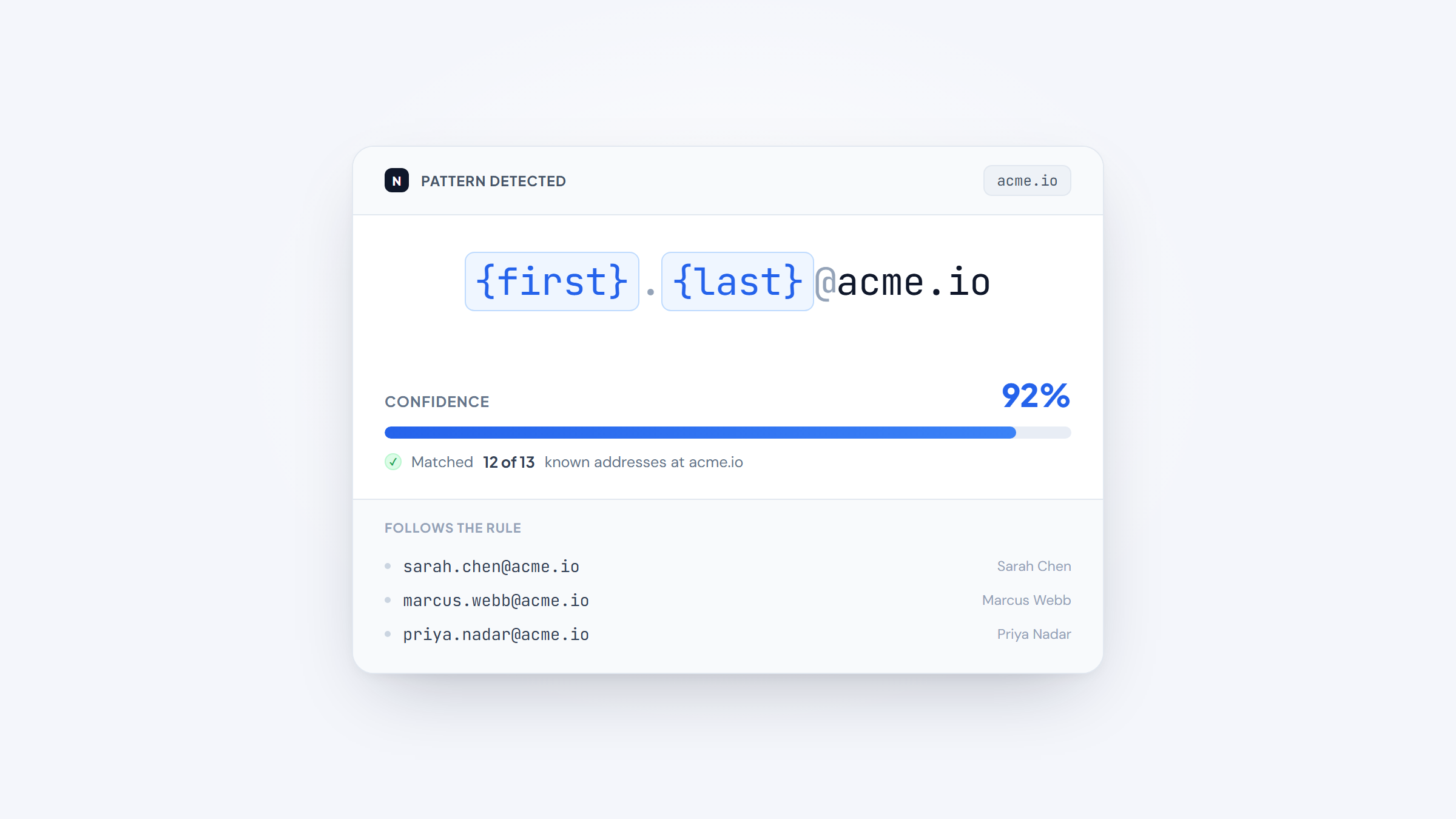
- 2The fastest repeatable trick is to learn a company's email format from one known address, then apply it to your target, since most firms use a predictable pattern like first.last@company.com.
- 3Our free Name2Email extension does this inside Gmail: type a name and company domain, and it surfaces the likely work email and confirms it via Gmail's contact recognition, with no credits or account.
- 4Always verify a guessed address before you send. Unverified guesses bounce, and bounces quietly damage your sender reputation.
Finding a work email shouldn't cost you a subscription. Most paid finders meter you with credits, but the same addresses are usually reachable for free if you know where to look. This guide covers the free methods that actually work in 2026, from Google operators to a free Gmail extension, plus the one step people skip that wrecks their outreach: verifying the address before they hit send.
We built Name2Email to make the fastest of these methods free and unlimited, so this is the space we work in every day. The methods below stand on their own, though, and we'll show where each fits.
If you've ever wondered how to find an email address for free without hitting a credit wall, this is the playbook: find a work email in seconds and never pay per lookup. If your goal is the reverse, identifying who owns an address you already have, our guide on how to look up an email address covers that instead.
Why Finding the Right Email Matters
Before the how, a quick word on the why, because the right contact is worth the effort. B2B buying has gone self-directed and multichannel: McKinsey finds buyers now use ten or more channels across a purchase, up from five in 2016, and reaching a decision-maker directly cuts through that noise.
Sellers feel the same pressure from the other side. Gartner reports that B2B buyers spend only about 17% of the buying journey meeting with suppliers, so the few direct touches you get have to land in the right inbox. A wrong or generic address wastes one of those scarce touches, which is why a verified personal work email beats a generic info@ line every time.
The good news is that a work email is rarely hidden. It follows a pattern, it's often already published somewhere, and free tools can surface it. The rest of this guide is the playbook.
Start With Google Search Operators
Google is the single highest-yield free method for work emails. Search operators force exact matches and narrow results to where addresses actually appear: team pages, PDFs, press releases, and speaker lists.
The Operators to Run
Work through these in order, swapping in your target's name and company domain.
- Search `"first.last@company.com"` in quotes to see if that specific address is already published anywhere.
- Run `"@company.com"` on its own to reveal the company's format from any employee address that surfaces.
- Combine `"First Last" email "@company.com"` to tie a specific person to an address.
- Search `site:company.com "First Last"` to find bios, author pages, and contact details on the company domain.
- Search `"First Last" "@company.com" -site:company.com` to catch mentions on directories and third-party pages.
Once any one real address surfaces, you've learned the company's pattern, which is the key to the next method. A useful add-on is to include a role or document type in the query, like `"@company.com" filetype:pdf` to surface signed documents, or `"First Last" "@company.com" "director"` to pin down a specific person at a big company where names repeat.
Google works best for people with a public professional footprint and less well for someone who keeps a low profile, which is exactly when the pattern method and a Gmail finder take over.
Find the Company's Email Pattern
Most companies use one consistent email format, so finding a single known address lets you deduce everyone else's. Grab one employee's email from a signature, a mailto: link, or a Google search, identify the format, and apply it to your target.
These are the common patterns, roughly in order of prevalence at larger firms.
Pattern | Example | Notes |
|---|---|---|
first.last@ | jane.doe@company.com | Most common at 1,000+ employee firms |
flast@ | jdoe@company.com | Very common, especially mid-market |
first@ | jane@company.com | Common at startups and small teams |
firstl@ | janed@company.com | Less common |
last.first@ | doe.jane@company.com | Occasional, some European firms |
Treat `first.last@` as the safest first guess for a large company and `first@` for a small startup, but confirm rather than assume. A guessed pattern is a hypothesis, not a fact, which is why the verification step later matters.
A worked example: say you want to reach Jane Doe at Acme, and a Google search turns up mike.smith@acme.com on a press release. The format is clearly first.last@, so Jane's address is almost certainly jane.doe@acme.com. That's how to find an email address by name once you have the pattern, and this deduction is exactly what our Gmail method automates.
Find Emails Inside Gmail with Name2Email
The manual pattern game is fast, but doing it by hand for every prospect gets old. This is the gap we built Name2Email to close, and it's free with no credits or account.
Here's how to find a work email address step by step, right inside Gmail.
- Install Name2Email from the Chrome Web Store and open Gmail.
- In the compose window's "To" field, type the person's name and company domain, like "Alex Rivera @acme.com."
- We generate the likely work-email patterns instantly and drop them into the field.
- Hover over each suggestion; when Gmail recognizes an address, it surfaces the person's name and photo, so you can confirm the right one.
- Use the confirmed address, or copy it into your outreach tool.
The honest limits matter here. It's pattern-based and works best on corporate domains, and it can't guarantee every address, so treat the Gmail recognition as a strong signal rather than a delivery guarantee. Because it runs where you already write email, it removes the copy-paste loop between a separate finder and your inbox, which is the whole point. Add Name2Email to Chrome to try it on your next prospect.
Use LinkedIn and Social Profiles
LinkedIn is the best place to confirm a name's exact spelling and, sometimes, the email itself. People are more forthcoming than you'd expect.
Check the profile's Contact Info panel first, since many people list a work or personal email there outright. Scan the About section and any featured links, which often point to a personal site with a contact address. If you're connected, LinkedIn also lets you export your connections' data, which can include emails.
Two more LinkedIn tricks help. First, the "People also viewed" and "More profiles for you" panels surface colleagues at the same company, and once you confirm one person's email format, that pattern applies to everyone else there. Second, comments and posts often reveal a personal site or newsletter in passing, and those pages almost always carry a contact address.
Beyond LinkedIn, a person's X (Twitter) bio or pinned post frequently contains an email, sometimes written as "name at company dot com" to dodge scrapers. Instagram and Facebook business profiles show a contact button for many company pages too. The goal on social platforms is either the address directly or the exact name and company you need to build the pattern.
Check the Company Website
Company sites are full of real addresses if you know which pages to open. Four are worth a look every time.
- Open the About and Team pages, which list staff and sometimes their direct emails.
- Check the Press and Media pages, which almost always publish a media contact address.
- Scan the Careers pages and job posts, which often include a recruiter's email and are heavily indexed by Google.
- Read the blog author bylines, which frequently link to the writer's email or profile.
Contact pages usually give you a generic address, but that's still useful: it confirms the domain's format and gives you a fallback. One more trick: view the page source (right-click, "View page source") and search for "mailto:", since addresses are often coded into buttons and links that don't display as plain text on the page.
Pair anything you find here with the pattern method to reach a specific person rather than a shared inbox, and you've turned a public website into a private work email.
Find Developer Emails on GitHub
If your target is a developer, GitHub is one of the best free sources, because public commit metadata contains the author's email. This is a genuinely underused free method.
Open any public repository the person has contributed to, click into one of their commits, and add `.patch` to the end of the commit URL, like `github.com/user/repo/commit/<hash>.patch`. The raw patch header shows `Author: Name <email>` with their real address. Their profile README and bio are worth a scan too, since some list a contact email directly.
This won't help for non-technical targets, but for engineers, founders of dev tools, and open-source maintainers, it's often the quickest route to a confirmed personal address.
Try WHOIS for Domain Owners
When your target owns a domain (a founder, a small-business owner, a blogger), a WHOIS lookup can expose the registrant's email. Run the domain through a free WHOIS service like whois.com or ICANN Lookup.
The caveat is that many registrations now hide behind privacy or redaction services, partly due to GDPR, so you'll often see a proxy address instead of a real one. When that happens, check the domain's older records (some historical WHOIS lookups show the original registrant email before privacy was switched on), and try the "abuse" or "admin" contact as a fallback.
When it does work, though, WHOIS hands you an address tied directly to the person who runs the site, which no pattern-guessing can match. It's especially useful for solo founders and small businesses, exactly the people who are hardest to reach through a corporate directory.
Stack Free Tiers of Email Finders
When you want a verified answer rather than a guess, most paid finders offer a free monthly allowance. Stacking a few covers a surprising amount of ground at no cost.
Free tool | Typical free allowance | Notes |
|---|---|---|
Hunter | 25–50 searches/month | Includes a free verifier |
Apollo | Free plan with credits | Large database |
GetProspect | ~50 free/month | Email finder |
VoilaNorbert | 50 free lookups | Finder |
Prospeo | ~75 free verified | Finder + verify |
Free tiers reset monthly, so rotating between two or three gives you a steady trickle of verified emails without a subscription. Use these when a guess needs confirming or when the manual methods come up empty, and keep Name2Email as your no-limit first pass inside Gmail.
How to Find and Verify a Work Email Address
Finding an address is only half the job; knowing how to find and verify a work email address is what separates outreach that lands from outreach that bounces. Sending to an unverified guess racks up bounces, and bounces quietly erode the sender reputation that decides whether your future emails land at all.
The pain is real and current. In one Reddit thread, sellers described the recurring problem not as finding a candidate address but as avoiding torched sending domains from bounced guesses. The fix is a quick verification pass: run any guessed address through a free verifier, which checks the format, the domain's mail records, and whether the mailbox accepts mail, before you add it to a campaign.
Our companion guide on how to verify an email in Gmail walks through the free ways to do this, including the catch-all domains that no tool can fully confirm. If you're finding emails to run outreach at scale, the same logic applies to your whole list, and the best cold email software pairs verification with sending.
How to Find Email Addresses: Free Methods vs Paid Finders
The methods above cost nothing, so it's worth being clear about when a paid tool actually earns its price. For finding individual work emails, free methods handle the large majority of cases. Paid finders win on two things: bulk volume, hundreds of addresses at once, and built-in verification at scale.
For one-off outreach, the free route almost always wins. Here's how the free methods stack up so you can match one to your target.
Method | Best for | Cost | Confirms the address? |
|---|---|---|---|
Name2Email in Gmail | Any work email, fast | Free, unlimited | Gmail recognition signal |
Google operators | Published addresses, patterns | Free | Only if already public |
Company email pattern | Anyone, once you know the format | Free | No, it's a guess |
LinkedIn / social | Names, sometimes the email | Free | Sometimes |
Company website pages | Media, recruiting, authors | Free | Yes, if listed |
GitHub commits | Developers | Free | Yes, a real address |
WHOIS | Domain owners and founders | Free | Yes, if not redacted |
Free finder tiers | A verified answer | Free (capped) | Yes |
The takeaway is simple: use the free method that matches who you're chasing, and reach for a paid tool only when you need to find email addresses in bulk or verify a large list at once. It's also how to find a company founder's email without a subscription: WHOIS for domain owners, GitHub for technical founders, and the company pattern for everyone else, followed by a quick verify.
Picking Your Free Method
You don't need all of these at once. For most work emails, the fastest path is Name2Email inside Gmail for an instant pattern-based find, Google operators when you want to confirm the format from a published address, and a free verifier before any real send. LinkedIn, company pages, GitHub, and WHOIS fill the gaps for harder targets.
Start with the method that matches your target, confirm the address is real, and you've replaced a paid finder subscription with a free workflow that lands in the right inbox. When you're ready to actually send, our guide on how to send to multiple recipients individually covers doing it without exposing your list.
Frequently asked questions
Use Google search operators to surface published addresses, deduce the company's email pattern from one known address, and confirm it inside Gmail with a free tool like Name2Email. LinkedIn, company About and Careers pages, and GitHub commits cover the rest. Verify any guess with a free verifier before you send.
Combine the person's name with the company domain. Search `"First Last" "@company.com"` in Google, check their LinkedIn Contact Info, and apply the company's email pattern (usually first.last@ or first@) to their name. Name2Email does this in Gmail: type the name and domain, and it surfaces the likely address.
Founders are often findable through WHOIS if they own the company domain, through their personal site or X bio, or through GitHub if they're technical. Otherwise, deduce the company pattern from any employee address and apply it to the founder's name, then verify before sending.
Find the address with the company's email pattern or a free finder, then verify it: check the syntax, confirm the domain has valid mail (MX) records, and use a free verifier to test whether the mailbox accepts mail. Name2Email's Gmail recognition adds a confirmation signal, though it isn't a full deliverability guarantee.
For finding individual work emails, free methods and free tiers cover most cases without a subscription. Paid tools win on bulk volume and built-in verification at scale. For one-off outreach, stacking Google operators, Name2Email, and a free verifier gets you the same result for nothing.

We build Name2Email, the free Chrome extension that finds work emails inside Gmail. We write about outreach, prospecting, and getting more replies.
Connect →